
Finance routines and troubleshooting
Apply the features to a software company's recurring financial work.
A weekly cash review at Q7M4
- Check recorded cash. Open Cash accounts and compare each account’s original-currency balance with your source records. Investigate missing/duplicate transactions. Transfers have two linked sides and should not become operating revenue/expense.
- Clear document drafts. Review supplier originals and customer invoices. Confirm only accurate, approved records. Delete abandoned drafts; do not confirm them simply to remove them from a queue.
- Allocate real payments. Review Needs allocation in Cash. The $12,000 C01 receipt and $3,000 contractor payment should reduce their documents to $12,000 and $5,000 outstanding respectively.
- Match expectations. In Reconciliation, link confirmed documents to the correct plan and dated schedule. Check similar plans for the same customer carefully.
- Review overdue receivables and near-term bills. Open the bell. Marking an alert read records your review; it does not settle the debt.
- Review the next eight weeks. Expand Projections categories. Check the $54,000 payroll week, customer milestones, hosting, rent, equipment, tax estimate, insurance, and loan repayments.
- Update expected cash dates. Reschedule only the unpaid portion when a client delays payment or a supplier agrees to later settlement. Keep the original document due date as evidence of its terms.
- Save the review. Export Projections with the chosen start/interval/horizon and retain relevant records/originals for the team’s review.
Common software-company situations
| Situation | Recommended platform workflow |
|---|---|
| New monthly retainer | Create an inflow plan, add dated amounts, then repeat future occurrences. Confirm each actual invoice and match it to its schedule. |
| Fixed-price project with deposit and milestones | Use separate scheduled collections for the deposit and delivery dates. Record the deposit as actual cash; allocate it to an eligible confirmed invoice when available. |
| Time-and-materials work with a changing fee | Update editable future schedules as estimates change. Once a document is issued, confirm and match it rather than adding another unrelated expectation. |
| Client pays several invoices together | Record one receipt and split its allocation across confirmed invoices from that organization. |
| Client pays only part of an invoice | Allocate the actual receipt. Keep the remainder outstanding and review the expected collection date. |
| Supplier is paid in instalments | Record each cash payment and allocate it to the same confirmed bill, within the remaining balance. |
| Monthly software subscription or annual renewal | Use scheduled outflows with the actual billing frequency; one annual renewal is not twelve smaller payments unless that is the real cash arrangement. |
| Payroll, staff reimbursements, travel, or marketing | Plan expected outflows by category and record actual cash. Documents are optional when recording cash; attach/review bills where available. |
| Contractor invoice differs from the original estimate | Confirm the correct bill, inspect plan-match capacity, and adjust eligible unmatched estimates. Never force the invoice amount to match an outdated estimate. |
| Equipment purchase awaiting approval | Keep its document in Draft. An equipment plan can still show the expected spend independently. |
| Founder contributes or lends money | Record Money in under an appropriate financing category. Plan repayments separately; do not manufacture a sales invoice. |
| Move a cash buffer to a reserve bank account | Use a same-currency Transfer. Count the later actual tax/supplier payment once when money leaves the business. |
| Customer refund or bank fee | Record the actual money out with a reference/category/notes. Do not allocate it to an unrelated supplier bill to make it disappear. |
| Foreign-currency client payment | Record cash in the actual account currency. For a different invoice currency, provide both settlement amounts and review the saved conversions. |
| Proposed new delivery squad | Label the assumption, export the current forecast, and explicitly edit future planned costs. Review the effect, then restore the original assumptions if the hire is unapproved. The platform does not isolate this as a separate scenario automatically. |
The platform manages cash expectations and records; these workflows do not calculate payroll taxes, revenue recognition, depreciation, or credit-note accounting. Use your approved amounts and dates. Positive invoice/bill documents are supported; do not enter a negative amount or reinterpret a refund as a credit-note feature.
Troubleshooting
| What you see | What to check and do |
|---|---|
| An organization name was typed but the form will not save | Choose an actual suggestion, or explicitly create the organization. Typing alone is not selection. |
| No organization, document, or plan in a list | Check the workspace, search/date/type filters, archive/status filters, and page. Clear filters before creating a duplicate. |
| No financial impact after creating a plan | Add a dated scheduled amount. The profile alone has no amount. |
| A schedule edit seems lost | Leave the edited row, wait for completion, and reload to verify. Check date/positive-amount validation and financial locks. |
| Confirm document is disabled | Complete title, type, selected organization, valid document/due dates, positive amount, and enabled currency. |
| A document is visible but absent from Projections | Check whether it is Draft/Voided, fully paid, or represented through a matched plan and its date. |
| A paid invoice still shows outstanding | Confirm the cash was allocated to this document, rather than merely recorded or matched to a plan. |
| A paid document remains in Reconciliation | Its cash is settled but its planned expectation is still unmatched. Match it if it represents a plan. |
| No documents available in Allocate payment | Check confirmed status, unpaid capacity, transaction organization, and money-in/invoice versus money-out/bill direction. |
| A financial field is locked | Review payment allocations, plan matches, carried-forward state, foreign schedule protection, and archived/terminated status. Undo the appropriate links before a permitted correction. |
| Account cannot be archived | Its original-currency balance must be zero. Keep its history; do not invent a balancing payment. |
| Transaction cannot be voided on an archived account | Restore the account first, then review the void confirmation. |
| New rate does not change an older invoice or bank balance | Saved conversions are retained. Configuration changes affect future conversions, not all booked history. |
| Forecast Available cash differs from today’s Cash accounts | Compare the same date. The forecast row is beginning-of-period cash; later periods also include projected activity. |
| Forecast appears to count an invoice twice | Look for an unmatched plan for the same work, or duplicate confirmed documents. Resolve the relationship instead of deleting cash. |
| A receipt appears in an unallocated breakdown | That cash is still real. Allocate it to a document if appropriate; unallocated does not mean missing from cash. |
| A save/import says the record changed | Preserve unsaved work, reload or analyze again, inspect the new values, then retry deliberately. |
| Import confirmation is disabled | Check invalid rows in All or nothing mode, changed options needing reanalysis, duplicate-repeat acknowledgment, expiry, permissions, and whether another run is busy. |
| Import stopped after committing some rows | Read the policy and final outcome. In skip mode, committed batches remain. Download results and retry only unresolved records. |
| Export download has expired | Create a new export with the same filters. |
| Original-file ZIP export failed | Check its error for missing/corrupt originals or package limits. Narrow the document set or resolve the original-file issue. |
| Read-only controls or a missing action | Ask the workspace Admin to review your role and dataset permissions. |
| Invitation is invalid or cannot be accepted | Check expiry/revocation and the invited verified email. Ask the Admin for a new private link if needed. |
On a small screen
Navigation wraps into the responsive layout, filters stack, and long pages scroll vertically. Tables can scroll within their own panels. In a document review, scroll between the original and detail form. Check the selected workspace and currency before entering money, just as on desktop.
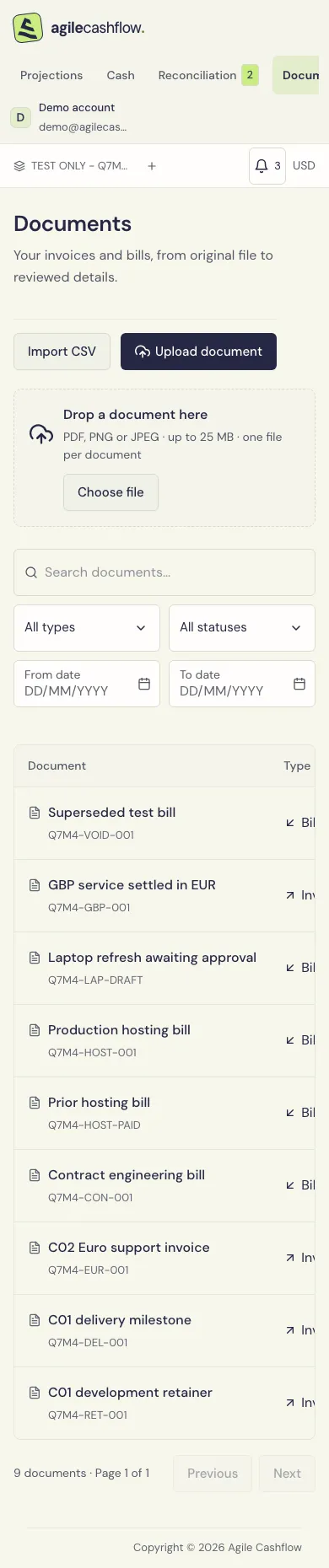
For unresolved product problems, capture the screen, action, workspace, record reference, and the displayed error.