
Optional services and limits
Understand capture, billing, API/MCP access, and integration prerequisites.
Manual documents, cash, plans, rates, matching, imports, and exports form the core workspace. Some features depend on separately configured services. Check the workspace, role and visible availability before following these optional flows.
Document capture
Capture requires workspace access to the feature, credits, and an enabled capture service. Without that access, the capture action and automated-capture setting are hidden.
When capture is available, upload a supported PDF, PNG or JPEG, choose Capture document, review the credit confirmation, then inspect every suggested field against the original. Save draft saves reviewed values; Confirm document is a separate financial decision. A suggestion alone creates no payment. Automated data capture in Defaults applies to future uploads/attachments after accepting its disclaimer. See Documents for unknown document types, inference, corrections and duplicate warnings.
Billing and usage
Open Settings → Billing to inspect the current plan, document-storage usage, members and capture credits. Available upgrade, credit and add-on actions depend on your role and the configured billing service. Paid changes require reviewing the displayed checkout terms; a checkout screen closing is not proof that access has updated. Reopen Billing after the confirmed result.
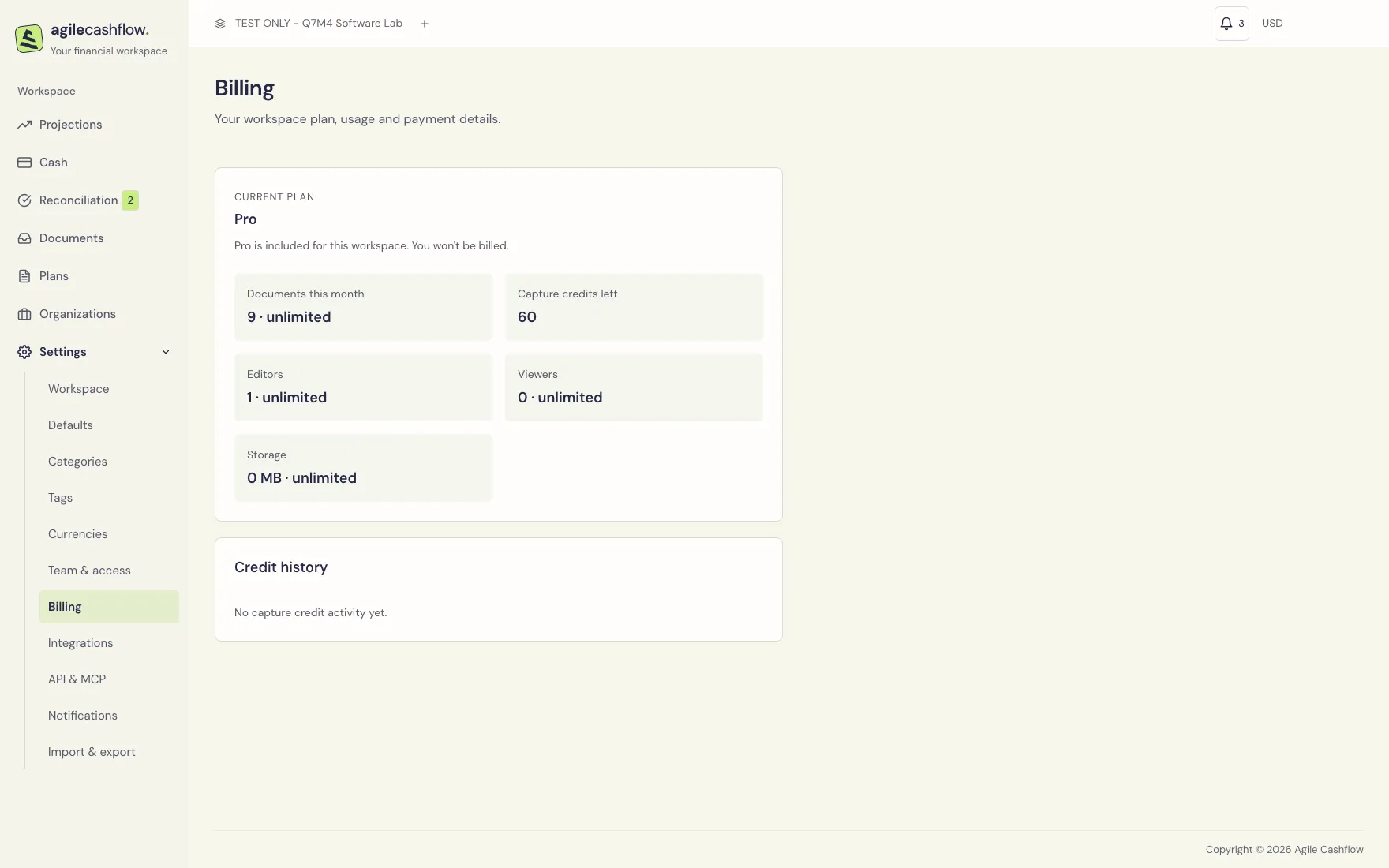
If the screen says billing is not configured, ask the deployment operator to configure it. File-size/storage/member/credit limits can block the relevant action; read the displayed limit rather than repeatedly submitting it. Existing business exports remain the review path for your records.
API keys and MCP
See Settings → API & MCP for creating, rotating and revoking scoped API keys, and for authorizing a read-only MCP connection. A key’s effective access depends on the owner’s current workspace role as well as its chosen permissions. Keep one-time secrets out of shared screenshots and exports.
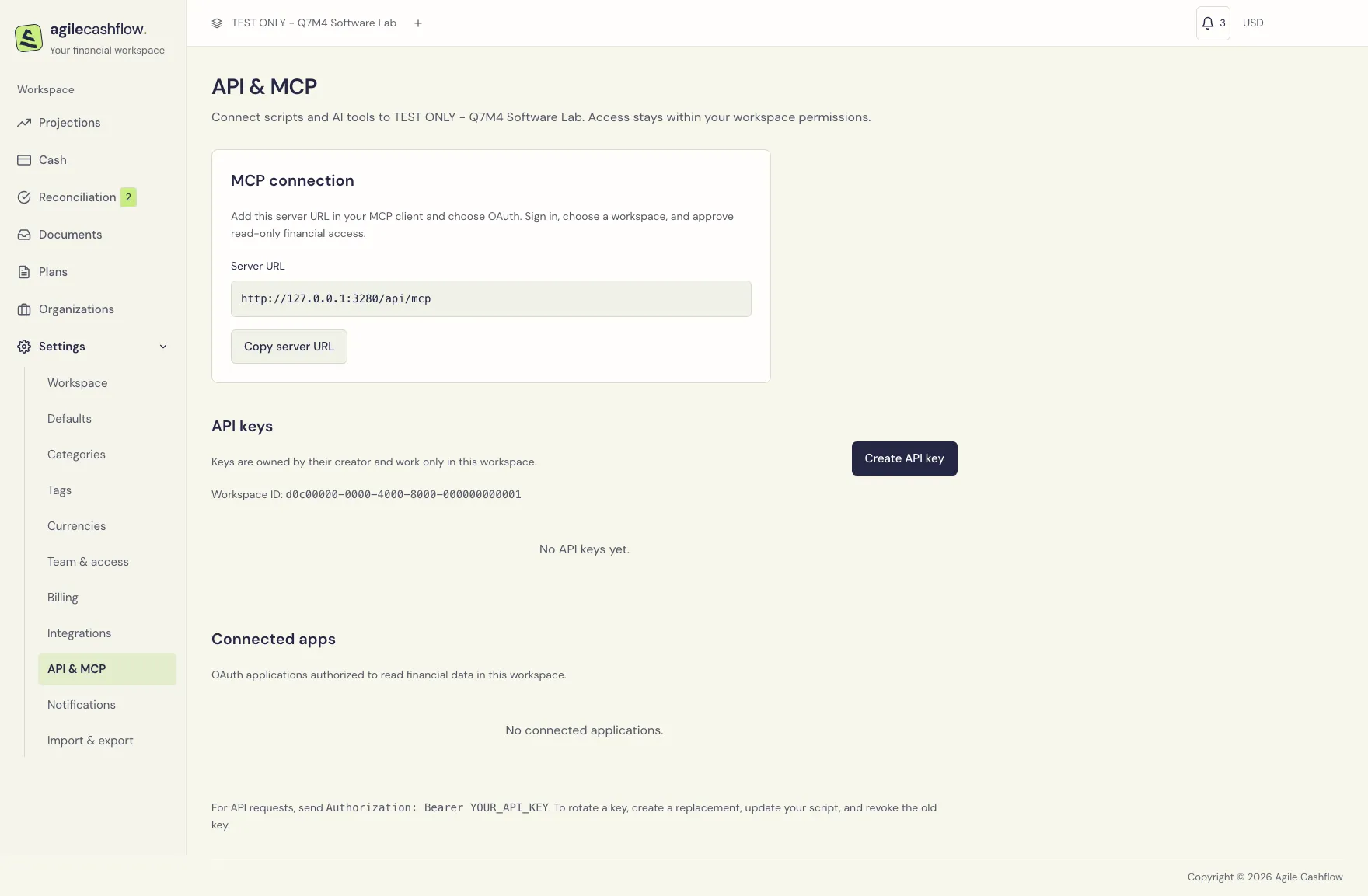
OAuth consent, verified identities, invitation acceptance and external MCP connections require an authenticated deployment.
Integrations and source-managed records
Settings → Integrations lists the providers enabled for your deployment. Connecting requires the appropriate workspace permission and that provider’s configuration and account authorization. Connection and synchronization details are provider-specific; this local scenario contains no live provider credentials or imported real-company records.
When a document or cash record says it is managed by a source integration, use its permitted review controls and inspect its source. Some financial fields and statuses must be corrected in the originating system and synced again. Recording another manual copy can duplicate debt or cash. Payment settlement and document-to-plan matching remain distinct even for synced records.
For an unavailable connection or failed sync, retain the displayed error and source reference for your workspace administrator. Do not infer that absent synced cash is zero. Reconcile the account’s opening/recorded balance with the original bank source before relying on the forecast.