
Reconciliation
Match documents to plans without counting the same expectation twice.
Reconciliation has three task tabs. Documents connects invoices/bills to planned amounts. Cash allocates already recorded receipts/payments to documents. Currency exchanges records or links exchanges to their plans. Choose the task before confirming a financial action.
| Tab | What confirmation changes | What to check |
|---|---|---|
| Documents | Document-to-plan relationship | Organization, flow, dated schedule and remaining matching capacity. Matching alone does not pay the document. |
| Cash | Allocation of an existing payment | Payment and document balances, direction, organization and both amounts for cross-currency settlement. Allocation creates no new bank cash. |
| Currency exchanges | Actual exchange postings or their relationship to an exchange plan | Send/receive amounts, accounts, fees and the reviewed remaining expectation. See currency exchanges. |
The Documents workflow below matches a customer invoice to an expected collection, or a supplier bill to an expected payment.
| Task | Screen | Result |
|---|---|---|
| Record that $12,000 reached the bank | Cash → New transaction | Recorded cash increases |
| Apply that receipt to an invoice | Cash transaction → Allocate payment | Invoice outstanding decreases |
| Connect that invoice to a $24,000 expectation | Reconciliation | The invoice and plan share the expectation instead of being counted twice |
Review automatic suggestions
Opening the Documents or Cash tab checks eligible records automatically. There is no Suggest matches button. A proposal explains the reference, organization, amount/date or distinctive service wording that supports it. These are rules-based suggestions; they never approve a financial change automatically.
- Read the proposed target and amount, then expand the relevant matching list to compare alternatives.
- Check source references and remaining capacities. An equal amount alone does not identify the correct document or plan.
- Confirm the displayed action only when the evidence agrees. Use Dismiss when the proposal is unsuitable; dismissal does not change debt or cash.
- If there is no supported or unique match, select an eligible record manually. Two equally plausible bills/plans require a manual decision.
- If an automatic check fails, use its inline Retry or continue with the manual matching controls. Reload changed financial details before retrying a stale action.
Reloading an unchanged record retains its current review or dismissal. Changed records/candidate balances can produce a fresh review. Fully matched records do not need another suggestion. Previous suggestions retains review context. Read-only access does not initiate proposal writes.
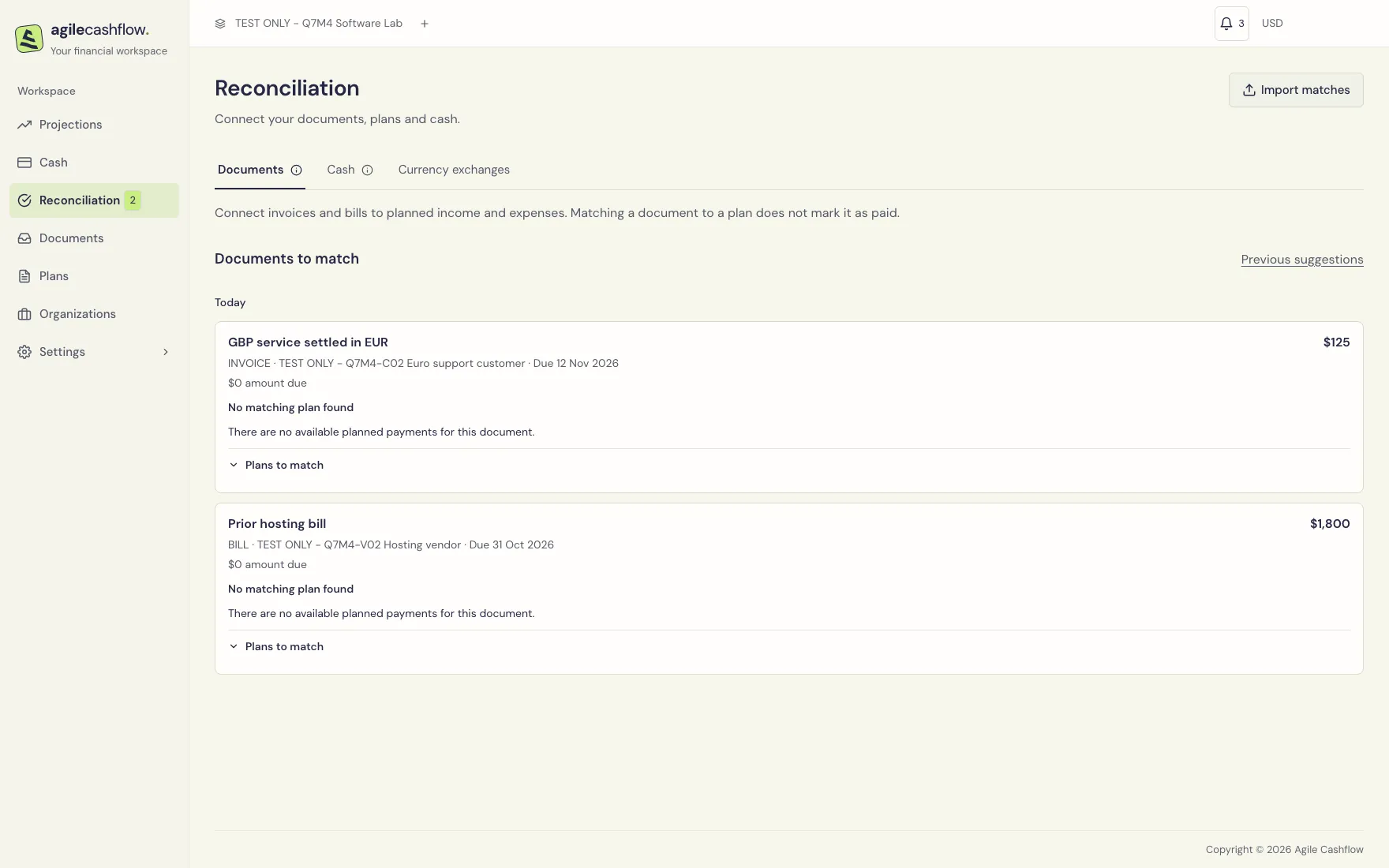
The default sample has five completed document-to-plan matches. Its paid prior-hosting bill and paid GBP invoice deliberately remain unmatched to plans; their zero debt does not imply that they have a suitable planned counterpart. Use them to inspect the no-match state without creating a second cash payment.
Match an existing scheduled amount
- Confirm the document in Documents first. Drafts are unavailable here.
- Open Reconciliation, or choose Match to existing plan on a confirmed document.
- Find the document card. Check its organization, due date, total, amount due, and To reconcile value.
- Review Suggested plans. These help locate likely matches; compare the organization and flow yourself.
- Use Search plans within the card to find a plan by its displayed information. Clear the search to return to suggestions.
- Open the Planned obligation dropdown for the correct plan. Select the specific schedule by date and available amount.
- Choose Reconcile on that row. Wait for the card/balance to refresh.
- Open the document and plan to check the resulting match. Then review its expected date in Projections.
For Q7M4, match the EUR support invoice, shown as $6,600 in reporting currency, to C02 support contract. Match the November hosting bill to Production hosting and the contractor bill to Contract engineering. Use the milestone plan for the delivery invoice, not the similarly eligible retainer plan for the same customer.
The refreshed screenshot shows the two intentionally paid-but-unmatched examples, with no suitable remaining plan. As they are fully matched their cards disappear. An empty list means there are no documents requiring additional plan matches; it does not mean there are no unpaid documents.
Understand matching amounts
- Total amount is the document’s reporting value.
- Amount due is its unpaid balance after payment allocations.
- To reconcile is the amount still available for plan matching.
- A plan dropdown shows each schedule’s available amount. The normal button matches the available capacity; it does not offer a separate arbitrary amount field.
- If one schedule covers only part of a document, the document remains available for the rest. Match the remainder to another eligible schedule. Conversely, several documents can consume one larger planned amount.
- Use the reviewed Document-to-plan matches import to enter explicit positive matching amounts in reporting currency. Imports preserve matches omitted from the CSV.
An already-paid document can still require plan matching. Amount due may therefore be zero while To reconcile is positive. This is intentional separation of settlement from planning.
Allocate recorded cash from Reconciliation
Open Cash within Reconciliation and find the receipt/payment. Review the suggested documents or expand Documents to match.
- A same-currency candidate has an editable amount and Match $… action. That button immediately saves only its displayed allocation, using the payment’s current version. There is no separate Confirm matches step.
- A partial allocation leaves the remainder available. Existing allocations are retained; check both the remaining payment and document balances before the next match.
- Use Set amounts for a cross-currency row so both payment-currency and document-currency amounts are explicit. Split across documents and Edit existing matches open the detailed allocation editor.
- Dismiss hides a suggestion without removing allocations. A failed/stale save stays inline; reload matching details before resubmitting.
In the sample, Q7M4-RET-PAY is already fully allocated even though its invoice is only half paid. Q7M4-CROSS-PAY settles the GBP 100 invoice with EUR 110. The standalone founder receipt, refund and bank fee require no unrelated invoice allocation simply to clear a list. See Cash allocations for corrections and reversal behavior.
Create a schedule while matching
If the appropriate plan exists but has no suitable schedule, choose New obligation at the end of that plan’s dropdown, then Reconcile. The platform creates a planned obligation for the document using its details and links it. Check the resulting plan and date.
If there is no suitable plan, open Plans, create one with the correct customer/vendor and flow, then return. Avoid creating a second plan merely because a filter or typed search hides the existing one.
Correct a match
- Open the matched plan and locate the document under Reconciled With.
- Choose Unreconcile [document name] beside the link. This is available for active plans.
- Check the document’s remaining match status in Documents or Reconciliation.
- Match it to the intended schedule, and recheck Projections.
Removing a plan match does not remove the original document or its cash payments. It can expose both a standalone document expectation and an unmatched planned expectation; rematch or correct the obsolete plan to prevent a misleading forecast.
If an amount is already paid, linked, carried forward, or on a terminated plan, the platform protects relevant changes. Read the error and adjust the eligible active records. In a matches import, reductions must not fall below already-paid matching amounts, and combined capacities are checked again when committing.
Check the forecast date after matching
Matched amounts are represented through the plan schedule. A document due 28 October matched to a plan scheduled for 2 November therefore retains its document due date while its planned collection is represented on 2 November. The overdue alert still refers to the document’s due date.
Use this deliberately when the schedule represents a revised expected collection date. If the schedule date is wrong, correct/reschedule the plan as allowed and recheck the forecast. Do not interpret a plan match as a due-date amendment to the original invoice.