
Cash accounts and transactions
Record receipts, payments, transfers, and payment allocations.
Cash records money that has actually moved. A transaction does not require a document. That makes Cash suitable for payroll, fees, founder funding, customer advances, refunds, and other movements as well as invoice payments.
Create a cash account
- Open Cash → Cash accounts → New cash account.
- Enter an Account name, such as Operating bank, Reserve bank, Corporate card, or Petty cash.
- Choose Account currency. Enable foreign currencies and supply a dated rate in Settings first.
- Enter Opening balance date and Opening balance.
- Choose Save account, then check the account in the list.
The opening balance is the balance at the beginning of that date, before transactions you will record. Do not enter an opening balance and also import the same opening money as a receipt. Negative balances are allowed, for example for a card account. Opening dates cannot be in the future.
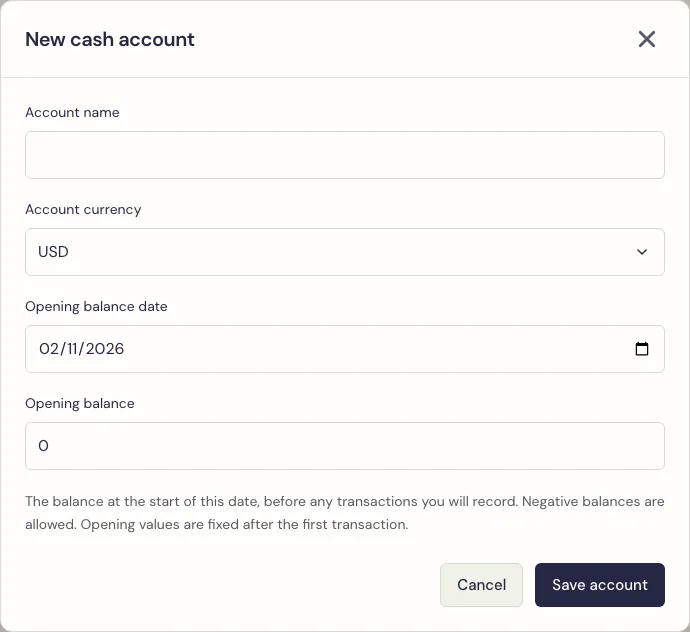
An account’s currency is fixed after creation. After its first transaction, its opening date/balance are also fixed. Its name can still be edited. To archive an account it must have a zero balance in its own currency. Archive and Restore retain account history; restore an archived account before voiding its transactions.
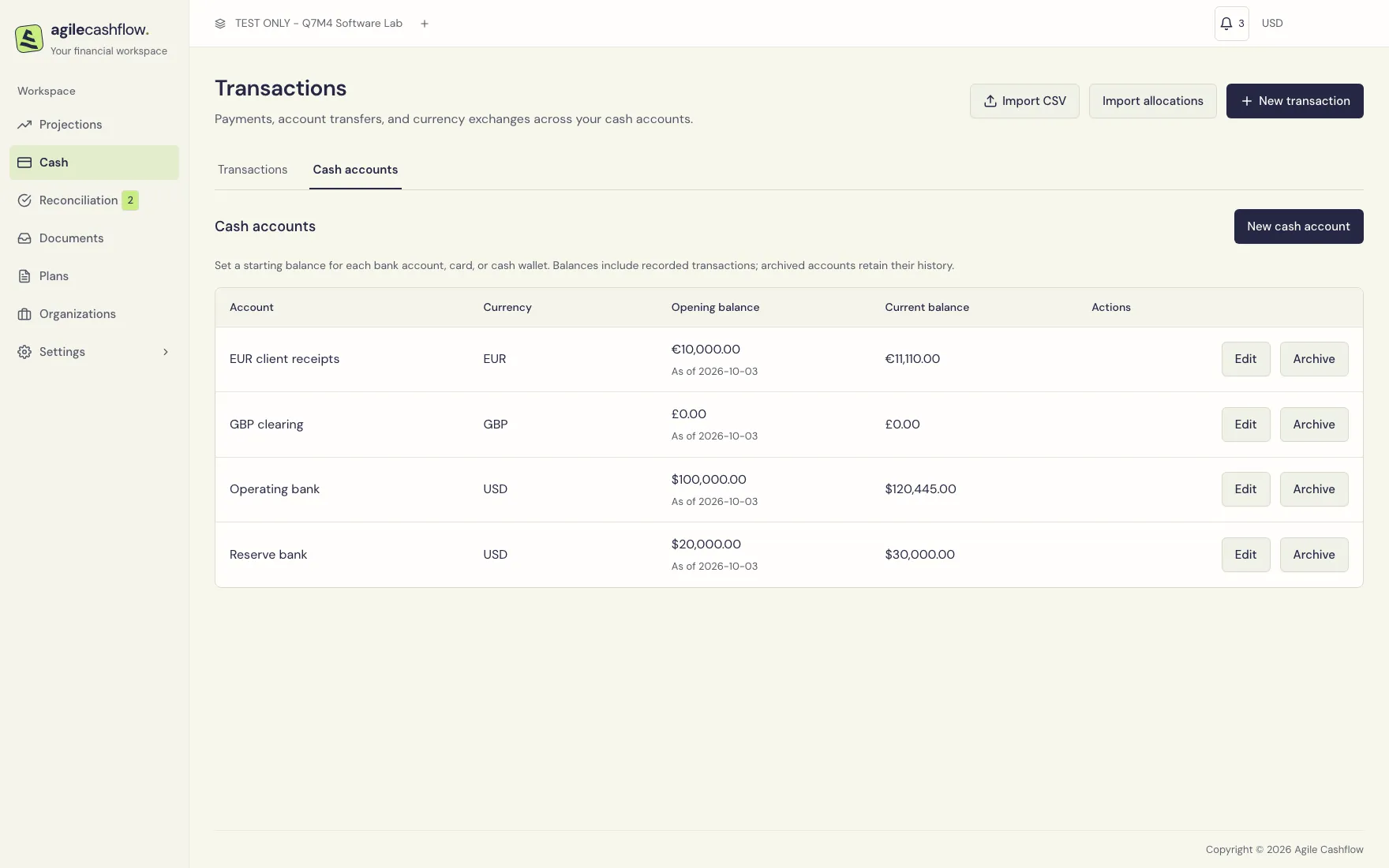
The refreshed example starts on 3 October with $100,000 Operating bank, $20,000 Reserve bank, EUR 10,000 valued at $11,000, and zero GBP clearing. After receipts, payments, the reserve transfer and currency exchange, balances are USD 120,445, USD 30,000, EUR 11,110 (USD 12,221 saved equivalent), and GBP 0: USD 162,666 reporting cash. See currency exchanges for the linked principal and fee entries.
Existing historical data may appear in currency-specific Existing cash accounts. Historical transactions are read-only; do not import them again as new receipts/payments.
Record money in or money out
- Open Cash → New transaction.
- Choose Transaction type: Money in or Money out.
- Explicitly select Cash account and check the currency shown with the amount. Do not rely on an account’s list order.
- Enter a positive amount. The transaction type supplies its direction.
- Enter the booking date and a meaningful Description. The date must fall between the account’s opening date and today.
- Optionally select Organization, Category, Reference, and Notes. Organization is required later if you want to allocate the transaction to that organization’s documents.
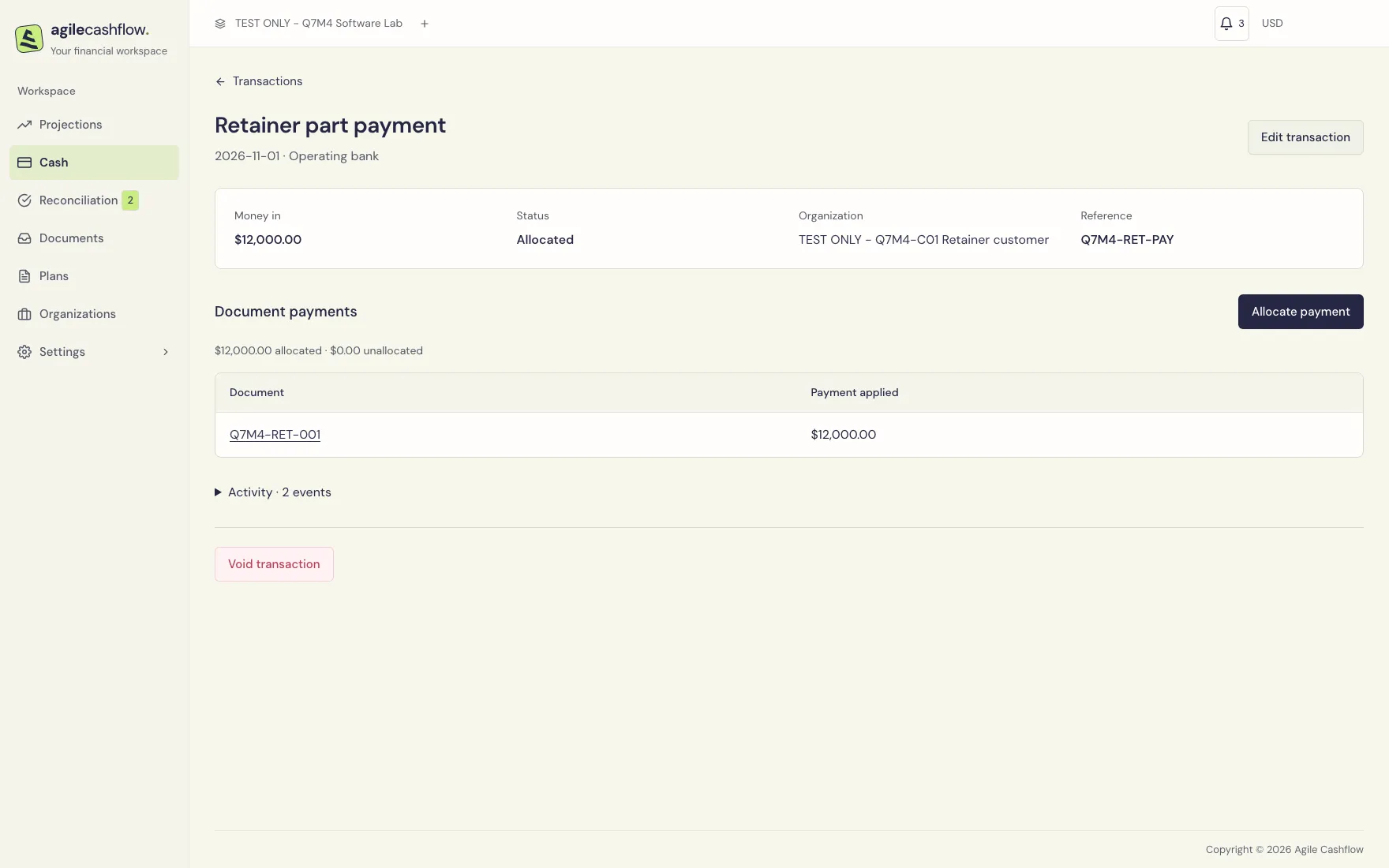
- Choose Record transaction. Check its account, amount, date, and status on the details screen.
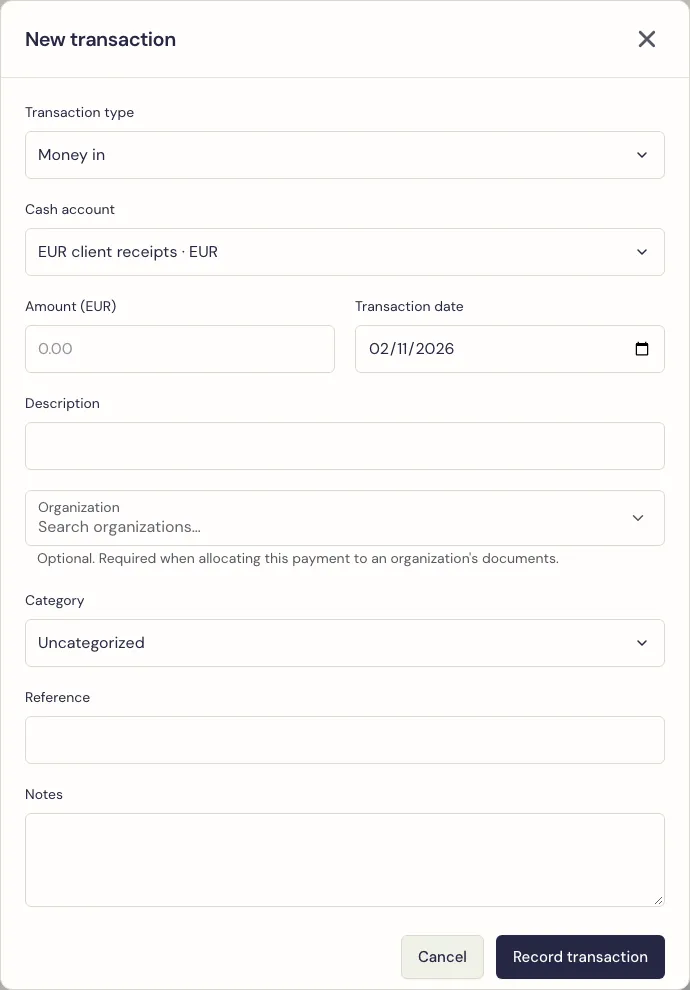
Examples: record the $25,000 founder loan as Money in under Financing, and the $600 goodwill refund as Money out. An advance can remain unallocated until an eligible customer invoice exists. Recording cash alone does not settle any invoice or bill.
Transfer money between your accounts
- Choose New transaction, then Transaction type → Account transfer.
- Select the source account and a different destination account in the same currency.
- Enter a positive amount, booking date, description, and reference.
- Record the transaction and check both account balances.
Q7M4 moves $10,000 from Operating bank to Reserve bank. The platform records linked money-out/money-in sides, so the list contains two records for that transfer. Total company cash is unchanged; it is not revenue or an operating expense. Void either side to reverse both sides together.
For USD/EUR or another cross-currency movement, use New transaction → Transaction type → Currency exchange. Choose Record new exchange when its bank movements are not recorded, or Link existing transactions when they already exist. Review both principal amounts and separate fees. See currency exchanges; do not also record the same debit and credit as independent payments.
Find and inspect transactions
Use Search transactions, cash-account, type, status, and From/To date filters. Status choices include Posted, Needs allocation, Allocated, and Voided. Choose Clear filters to return to the default list, and Previous/Next to page through results.
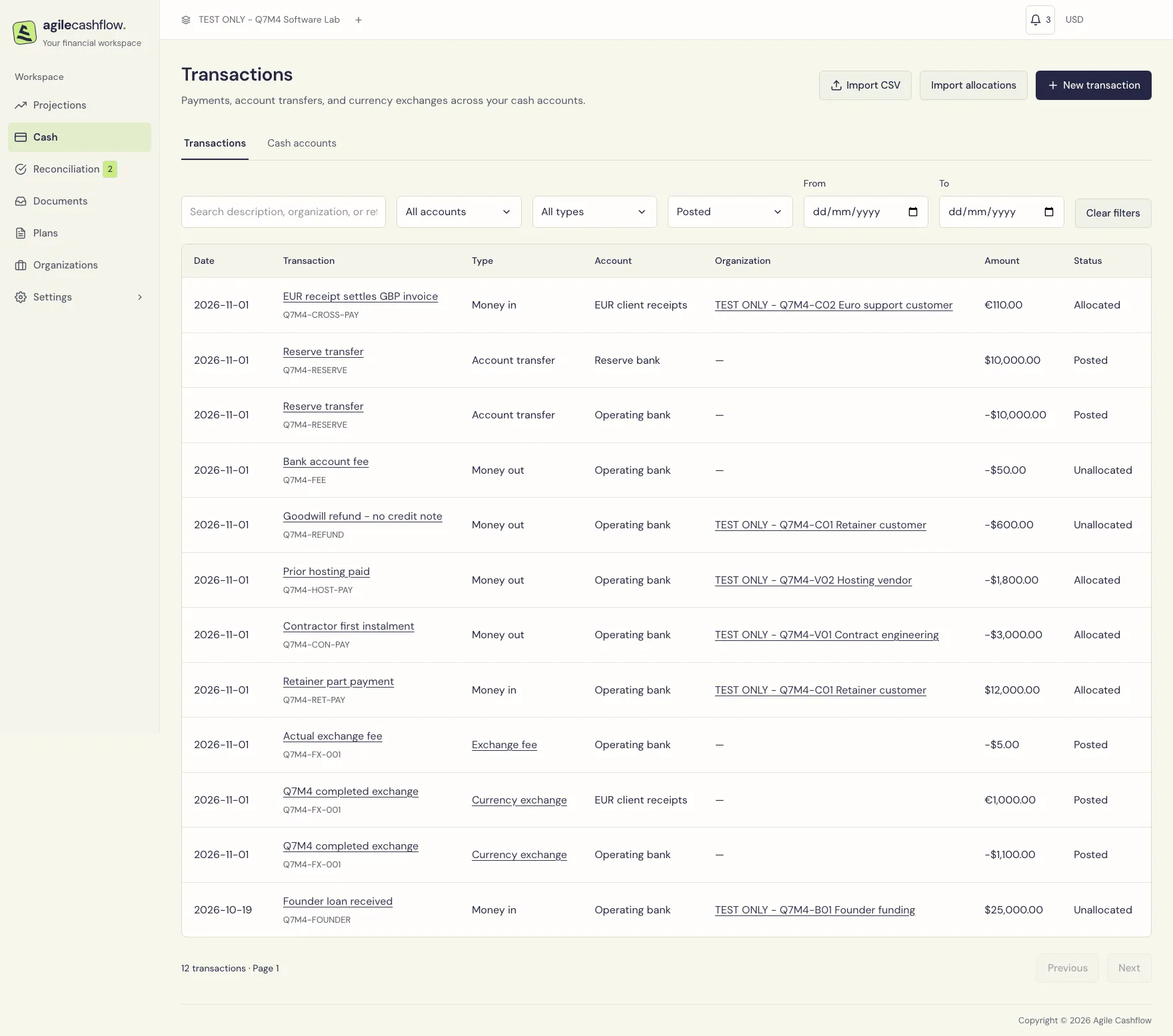
The Type column distinguishes Money in, Money out, Account transfer, Currency exchange, and Exchange fee. Exchange types link to the grouped review. Open a payment to see its summary, original-currency amount, reference, organization, notes/category, and Document payments. Exchange postings are managed together from their exchange review. A foreign transaction also shows its saved reporting conversion. Expand Activity for action history.
| Status | Meaning |
|---|---|
| Unallocated | No payment amount has been assigned to a document |
| Partially allocated | Some transaction value remains unassigned |
| Allocated | The transaction value is fully assigned; the document may still be only partly paid |
| Posted | A posted account-transfer or exchange movement; the Type column distinguishes its role |
| Historical | A read-only existing cash record |
| Voided | A retained record whose financial effect has been reversed |
Allocate a payment to documents
- Open the cash transaction. Ensure it has the correct organization and direction.
- Choose Allocate payment → Add document.
- Select a confirmed invoice for Money in, or a confirmed bill for Money out. Candidates belong to the same organization and have available outstanding value.
- Enter the Payment amount to assign. The form may suggest an amount; check it.
- For a split payment, choose Add document again and assign part to another eligible document.
- Check allocated and unallocated totals. You may leave part unallocated, but cannot exceed the payment or document’s available balance.
- Choose Save allocations. Open the document from Document payments and check its Payments summary.
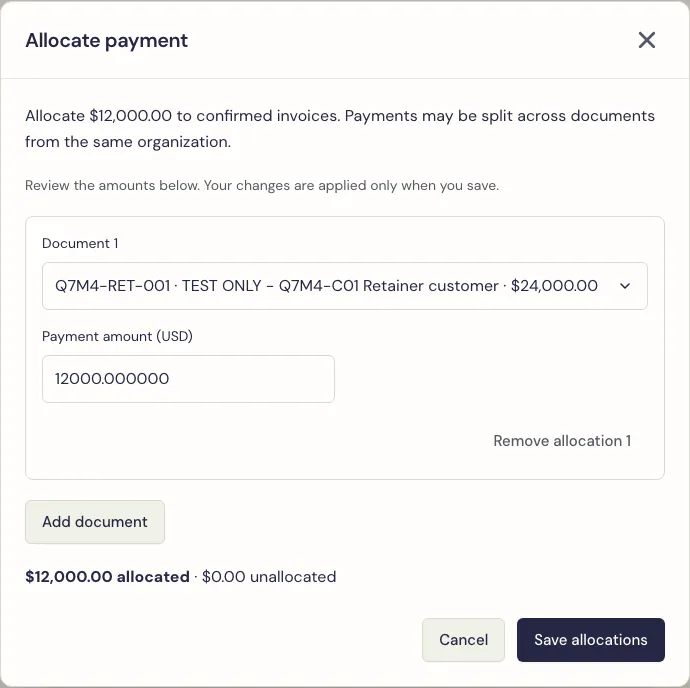
Example: a $12,000 receipt is fully allocated to the $24,000 C01 invoice. The cash transaction says Allocated, while the document says Partially paid with $12,000 outstanding. Allocating the $3,000 contractor instalment leaves $5,000 due on the $8,000 contractor bill. Allocating the $1,800 hosting payment marks that hosting bill Paid.
Different payment and document currencies
For different currencies, the allocation form requests both amounts. Enter the actual amount of payment currency assigned and the amount of document currency it settles. For example, assigning USD 3,300 to EUR 3,000 settles half of a EUR 6,000 invoice. This is an example allocation, not a live exchange quote.
The transaction retains its payment-date conversion. The document settles at its own saved conversion. Where they differ, transaction details show the debt settled and the difference from cash conversion. Changing Settings rates does not retroactively rewrite either record.
Correct, remove an allocation, or void
Edit transaction: open it, choose Edit transaction, change eligible fields, and save. Financial fields are locked while payment allocations exist. Remove those allocations before changing financial details. Description/reference/notes may remain editable.
Remove an allocation: open Allocate payment, choose Remove allocation [number] for the relevant line, then Save allocations. The cash stays recorded; the document’s outstanding balance increases accordingly. Saving an empty allocation list removes all the transaction’s document payments.
Void transaction: choose Void transaction, review the confirmation, and confirm. Cash and its payment allocations are reversed together, and activity history remains. A transfer reverses both linked sides. Use the Voided filter to inspect the retained record. This is not an instruction to send money back through a bank.
For bank-statement entry, Import CSV opens Cash transactions in the shared reviewed importer. CSV amounts are signed, unlike the positive amount in the manual form: positive receives money; negative pays money. Import allocations links existing payments to documents and creates no additional cash. See the dataset reference.