
Documents
Upload, review, confirm, correct, and void invoices and bills.
Documents hold customer invoices, supplier bills, and their original files. Uploading opens an Unsaved review. A document is created only when you choose Save draft or Confirm. Leaving without saving discards the upload and its suggestions. Confirming it records an amount owed and makes it available to projections and reconciliation. Neither step records money received or paid.
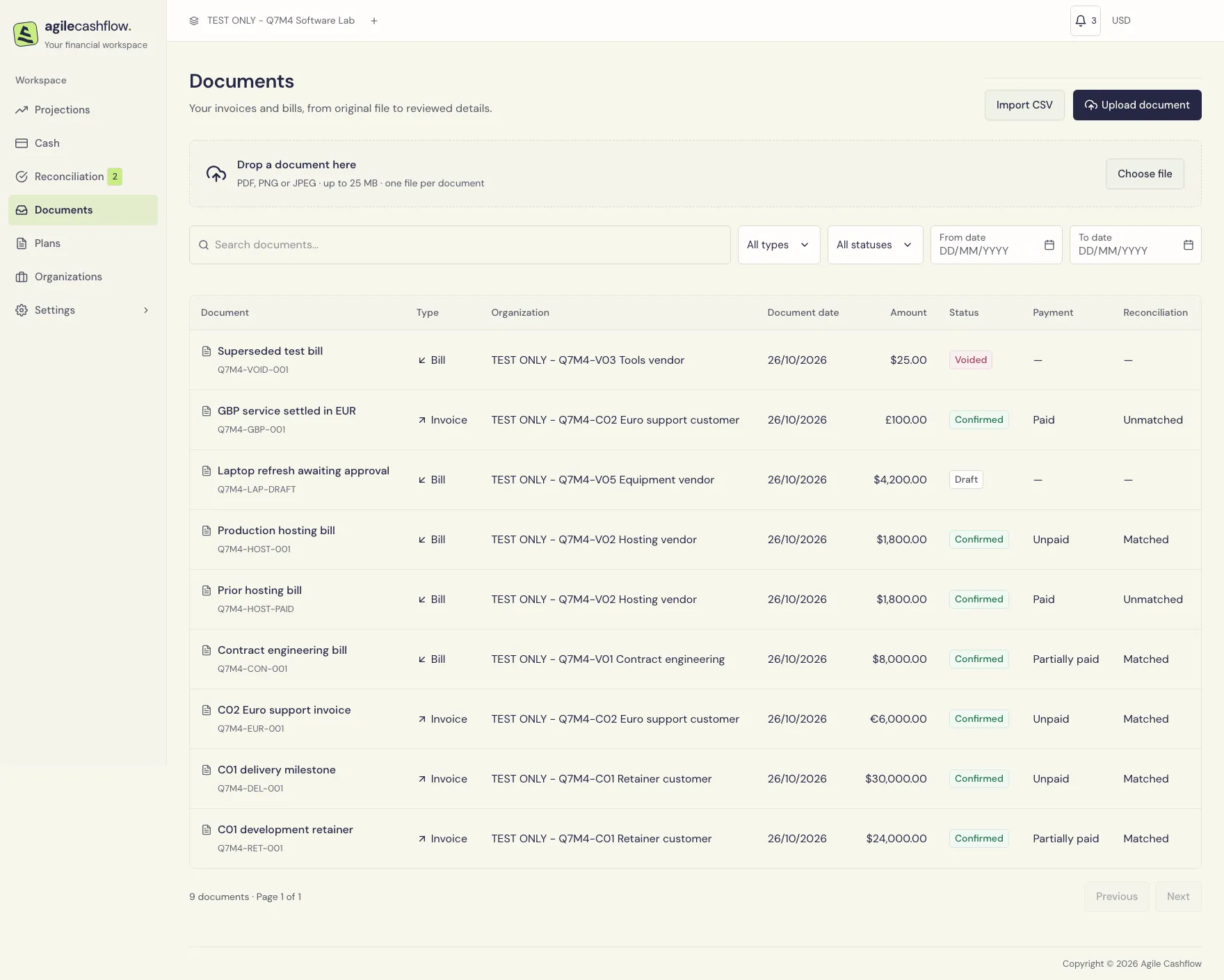
Find a document
Open Documents. Search by its displayed title, organization, or reference, and narrow the list using the status, type, and date filters. The list distinguishes Draft, Confirmed, and Voided records. Use the page controls for additional results. Clear filters if a document appears to be missing.
Open a document’s title to review it. Import CSV opens the reviewed Documents importer; it creates drafts too. See Import and export for bulk entry and optional original-file attachment.
Upload and review an original
- Choose Upload document and select a PDF, PNG, or JPEG file, up to your plan’s limit: 10 MiB on Free or 25 MiB on Pro.
- Wait for the upload to finish and the document review page to open. If you cancel an upload, check the result before retrying.
- Review the original on the left and complete the details on the right. Choose Capture document and confirm its credit cost to request suggestions, or enter details manually. A scanning sweep appears while capture processes it. Available suggestions fill the normal fields automatically, including dates and fields needing review. Edit any value directly; Use suggestion appears after an edit to restore the captured value. There are no per-field acceptance checkboxes or separate Apply step. Save everything with Save draft. Source details are available from a small icon on field hover/focus. Preview/shadow mode shows source readings without filling or saving fields.
- Choose Save draft to keep unfinished work. Return through Documents to continue later.
PDF previews provide page navigation, page count, zoom in/out, and Fit width. Images provide zoom controls. Use Download original document to save the original file, or the original-view link to inspect it separately. If a preview cannot be displayed, try downloading the original and reload the document before retrying.
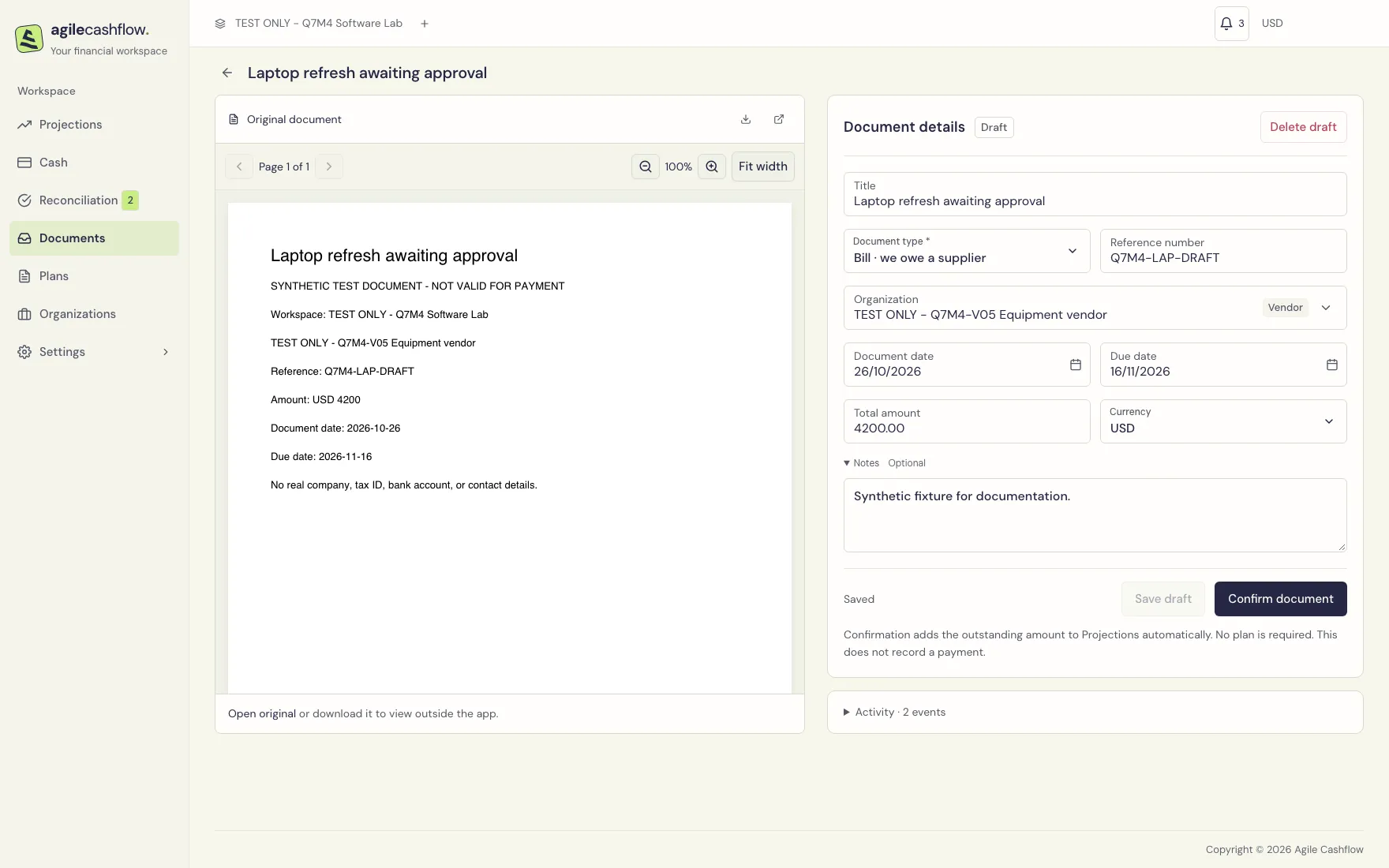
Complete the required details
| Field | What to enter |
|---|---|
| Title | A recognizable description, such as C01 October development retainer |
| Document type | Invoice · customer owes us for a sale; Bill · we owe a supplier for a purchase |
| Organization | Select an existing customer/vendor, or use the highlighted Create organization choice |
| Reference number | The original’s reference; useful for duplicate review and imports |
| Document date | Date of the invoice or bill |
| Due date | A valid date on or after the document date |
| Total amount | Positive total, with the currency’s allowed decimal precision |
| Currency | An enabled document currency |
| Notes | Optional internal context |
New drafts use the workspace currency and payment-term defaults. Check the original’s actual due date before confirming; a default is only a starting value. Reference is useful but not mandatory for confirmation.
Settings → Defaults → Automated data capture can enable capture for future uploads and attachments across the workspace after accepting the processing and credit disclaimer. It is off by default; uploading alone uses no capture credit while it is off.
When the captured organization is new, its name is highlighted as Create organization by default. Available VAT/tax ID and printed address appear below it and are saved with the organization when you choose Save draft or Confirm document. You can select an existing organization instead. Leaving without saving creates no organization. Open Organizations to add or refine its details. The selected organization’s type appears inside the selector; dropdown items also show their type. Creating an organization requires permission to manage organizations.
Capture supports invoice/bill headers in English, Polish, German, and Dutch. Capture starts when you choose Capture document in the preview toolbar and confirm its credit cost. It suggests values without saving or confirming a document, and does not record payments. Suggested and manual values are saved together with Save draft. Suggestions arriving later preserve fields you have already edited. Ambiguous dates are estimated using issuer country, other printed dates, current date, and issue/due ordering; inferred dates are marked and can be edited. Receipts, credit notes, multiple invoices in one file, prior payments, and conflicting totals need separate review. If capture fails or credits run out, the original and manual-entry workflow remain available. Use Capture again beside Fit width in the preview toolbar to start a new run. A confirmation dialog explains the credit cost before starting. Cancel or Escape leaves capture unchanged. The animation becomes a static status indicator when reduced motion is enabled.
An unknown or unsupported document type still fills the supported fields found in the original, including organization, reference, dates, total and currency. Missing or invalid values stay blank, and your manual edits are preserved. Review the document type and whether anything is still owed before confirming; capture does not automatically choose invoice/bill type for non-invoice documents. Their capture credit is returned. Suggested organization details, including printed VAT/tax ID and address, are created only when you save or confirm.
Confirm document remains disabled while required fields are incomplete. Review the helper text below the form for what is missing. A Possible duplicate warning links to a matching file or reference already present; inspect that record before confirming another copy. A warning does not mean the document has been rejected automatically.
Confirm an invoice or bill
- Compare organization, type, dates, amount, currency, and reference with the original.
- Choose Confirm document.
- Wait for Document confirmed and included in Projections. No plan is required..
- Check the confirmed status, conversion when applicable, Cash forecast summary, including payment and plan-matching status.
Confirmation adds an unpaid amount to the cash forecast, subject to its plan matches. Drafts do not contribute. A document matched to a plan is represented through that plan’s expected schedule rather than counted a second time; see Reconciliation.
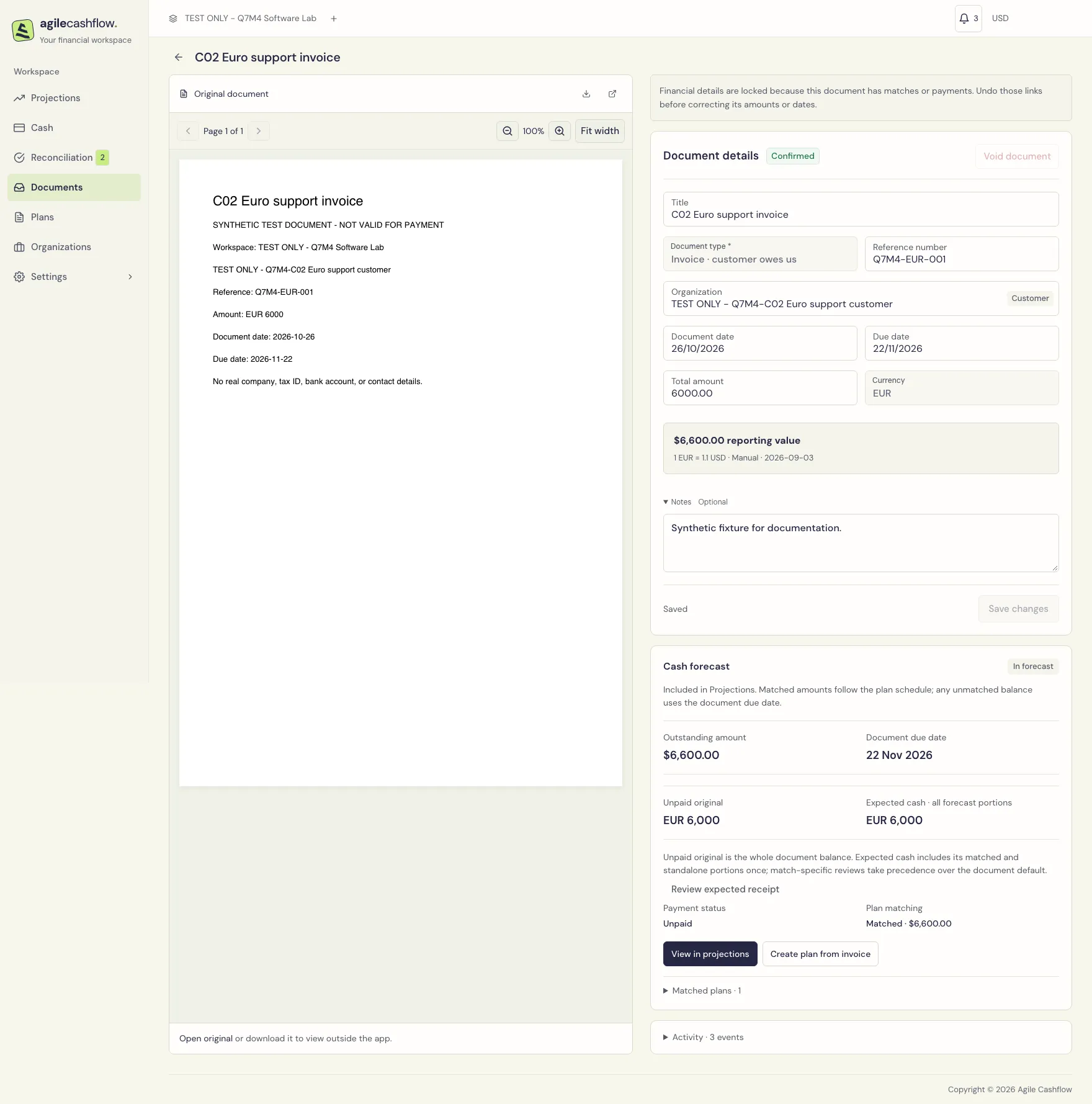
The Cash forecast section explains how the confirmed document appears in Projections. Unmatched invoices appear under Expected collections → Unpaid invoices; bills appear under Expected payments → Unpaid bills. View in projections opens the relevant period for an unmatched document. No plan is required, and confirming a document creates no plan or draft plan.
Use Match to existing plan if this document represents an expectation you already scheduled. Create plan from invoice/bill is optional and requires permission to edit plans: it prefills the organization, direction, and name for a plan profile. Choose a category, create it, then add future scheduled amounts. It does not copy the current invoice/bill into a second forecast amount or automatically match it to the new plan.
For a foreign invoice, check the reporting value, rate, source, and date saved on confirmation. Q7M4’s EUR 6,000 support invoice is $6,600 using the example rate of 1.10 USD per EUR. Changing configured rates later does not rewrite this saved conversion.
Read payment and plan-match status separately
| Area | Question it answers | Next action |
|---|---|---|
| Payment status: Unpaid, Partially paid, Paid | Has cash been allocated to settle the document? | Open Cash, record/find the transaction, then Allocate payment |
| Plan matching: Unmatched, Partially matched, Matched | Which expected plan amounts does this document represent? | Choose Match to existing plan and match it to a plan |
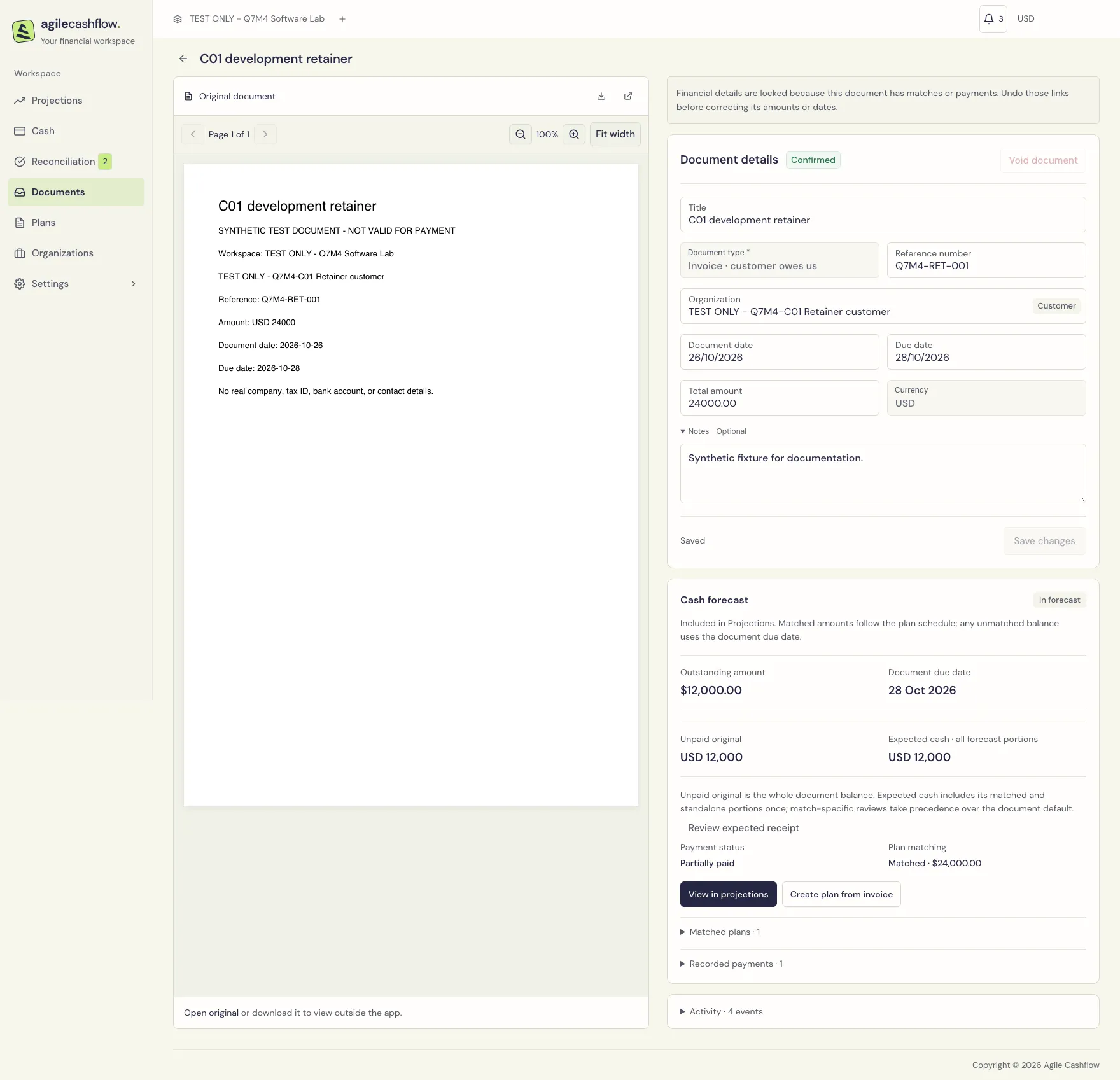
A fully matched $24,000 invoice can still be only half paid. Q7M4’s $12,000 receipt leaves $12,000 outstanding. Conversely, a paid hosting bill can still appear in Reconciliation until it is matched to a plan; matching is independent of settlement.
The summaries show reporting-currency values. On a foreign document, compare the saved original currency and the reporting value before comparing it with a cash allocation.
Correct, attach, void, or delete
Correct an unlinked document: edit its details and choose Save changes. After matches or payments exist, financial fields are locked. Remove the relevant plan matches and payment allocations before correcting amounts, dates, or organization. Title/notes may remain editable. Recheck the saved conversion after a permitted financial correction.
Attach a missing original: a CSV-imported document may have no original. Use the file attachment control on its preview panel, select a PDF/PNG/JPEG, and wait for the preview. Existing originals cannot be replaced through CSV imports.
Void a confirmed document: choose Void document, read the confirmation, and confirm. Voiding removes its outstanding amount from forecasts while retaining its file and activity. Resolve matches and payments first if the platform blocks the action. Voiding a document does not reverse a bank payment; reverse incorrect cash separately in Cash.
Delete a draft: choose Delete draft and confirm. This removes the draft and its uploaded original. Use it for a saved draft you no longer need. An unsaved upload has Discard upload instead and is also discarded when you leave. Confirmed records use voiding rather than draft deletion.
Review history: expand Activity to inspect actions and timestamps. For a stale-edit error, use Reload document, then reapply only changes still needed. Reloading replaces the form values, so preserve any unsaved information you need first.