
Start and navigate
Understand the workspace, access, terminology, and setup order.
Meet TEST ONLY - Q7M4 Software Lab
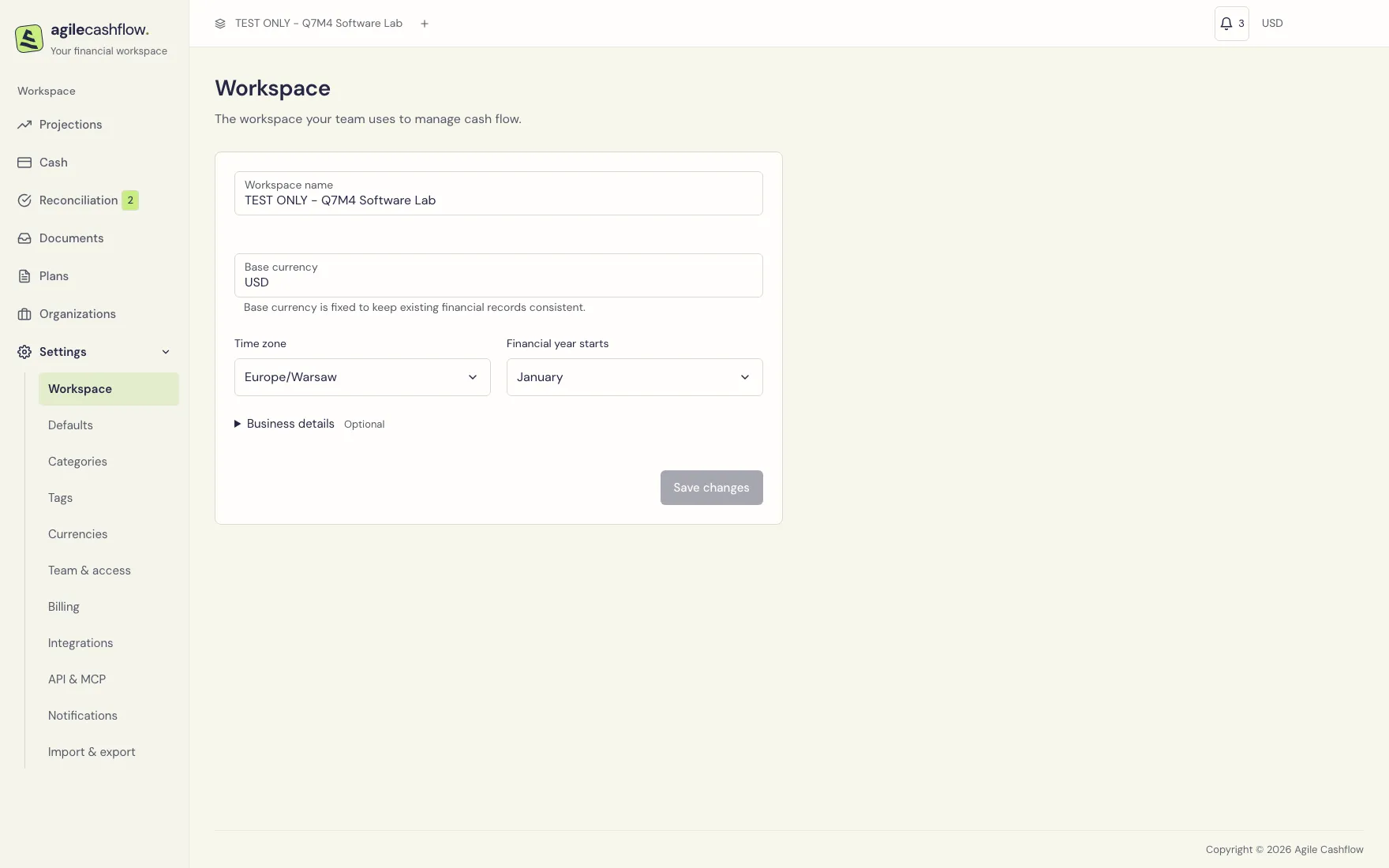
TEST ONLY - Q7M4 Software Lab is an invented 18-person development studio. It builds client products and sells ongoing support. Maya, its finance lead, reviews cash weekly. The workspace reports in USD, uses Europe/Warsaw for business reminder dates, and starts its financial year in January.
| Financial pattern | Example used in the workspace | Where to record it |
|---|---|---|
| Recurring development retainer | $24,000 expected monthly from TEST ONLY - Q7M4-C01 Retainer customer | Inflow plan, customer invoice, and receipt when paid |
| Project milestones | $30,000 at each portal delivery milestone | Separate dated scheduled collections |
| Foreign-currency support | EUR 6,000 monthly from TEST ONLY - Q7M4-C02 Euro support customer | EUR invoice and a schedule valued at $6,600 using the example rate |
| Payroll | $54,000 at month end | Outflow plan; cash payment when it happens |
| Contractor costs | $8,000 monthly; $3,000 already paid | Bill, partial payment allocation, and outflow plan |
| Variable and recurring overhead | $1,800 hosting, $950 tools, $2,400 rent | Separate plans/categories; bills where available |
| Periodic expense | $1,200 quarterly insurance | A quarterly schedule, rather than a monthly assumption |
| One-off capital spending | $4,200 laptop refresh | Equipment plan and a draft bill pending approval |
| Taxes | An illustrative $5,000 expected payment | A separately classified expected cash outflow; enter your own calculated amount |
| Working capital and financing | $25,000 founder loan; $2,000 repayment schedule | Actual money in plus separately planned repayments |
| Refund | $600 customer goodwill refund | Actual money out, with its own reference and notes |
| Treasury movement | $10,000 moved to Reserve bank | A transfer between same-currency cash accounts |
The example exchange rates, 1 EUR = 1.10 USD and 1 GBP = 1.25 USD, are for illustration only, not current market quotes. A loan receipt is not a customer sale; keep it in Financing. Moving money to your own reserve account is a transfer. Record an expected tax payment only when you expect money to leave the business; do not count a reserve transfer as that tax payment too.
Sign in and choose a workspace
- Open your organization’s Agile Cashflow Manager address.
- Sign in with your email. The sign-in screen also lets you create an account, verify your email, or recover your password.
- Check the workspace name in the top bar before editing anything. If you belong to several workspaces, choose one from the Workspace selector there. Your selection is retained when you return.
- Check the reporting currency at the top right. The example workspace uses USD.
If the screen says your account is not assigned to an organization, ask the workspace administrator to add you.
Open Account menu at the lower left and choose Sign out to leave the session.
Find the right screen
| Navigation item | Use it for |
|---|---|
| Projections | Cashflow overview and period-by-period drill-downs |
| Cash | Transactions, cash accounts, and payment allocations |
| Reconciliation | Matching confirmed invoices and bills to planned amounts |
| Documents | Uploaded originals and reviewed invoices/bills |
| Plans | Planned inflows/outflows and their schedules |
| Organizations | Customers, vendors, and their contact details and financial overview |
| Settings | Workspace, Defaults, Categories, Tags, Currencies, Team & access, Notifications, Import & export |
The bell in the top bar opens notifications. The Reconciliation navigation badge counts documents awaiting plan matching; it is not the number of unpaid invoices.
Recommended first setup
- In Settings → Workspace, check the name, time zone, business details, and financial-year start. Save changes.
- In Categories and Tags, create the labels your team will use.
- In Currencies, enable any foreign currencies and supply dated rates before entering foreign opening balances or confirming foreign documents.
- In Defaults, choose document payment terms and a forecast interval/horizon.
- Add your customers and vendors under Organizations.
- In Cash → Cash accounts, enter opening balances at the beginning of a chosen date.
- Create plans and their scheduled amounts. A plan profile alone has no dated amount to forecast.
- Upload documents, record real cash, and connect them using the two different linking workflows.
- Review Projections, then invite your team with appropriate roles.
Common interaction rules
- Use a field’s visible format. Date pickers in document and plan forms use DD/MM/YYYY. Cash date inputs use your browser’s date control. CSV files require YYYY-MM-DD.
- Select a customer/vendor from the Organization suggestions. Typing a name does not select it. Choose New organization if it does not exist.
- Forms have their own save controls. Plan schedule cells save after you finish editing and leave the row; see Plans.
- Wait for the saved message or completed result before moving on. A closed upload picker is not proof that an upload finished.
- A disabled control may reflect your permissions, an archived record, an existing financial link, or a request in progress.
- Use Tab to move through controls. Calendar popovers support keyboard navigation and Escape to close. Skip to content is available at the start of keyboard navigation.
- Wide financial tables may scroll inside their own panel. On a small screen, scroll the table to reach columns and actions; do not assume the last visible column is the last column.