
Import and export
Review CSV changes, import every supported business dataset, and export records and original files.
Settings → Import & export provides a shared workflow for business CSV data. Importing has two deliberate stages: Analyze import produces a preview; confirming Import [count] records applies the reviewed changes. A successful upload or analysis alone does not change business records.
There are 11 import datasets and 18 export datasets, including the Projections snapshot and six currency-review datasets. The running app’s Dataset list is authoritative for your role. Workspace settings, team membership, and unrelated operational histories are not general-purpose transfer datasets in this build.
Prepare a file
- Open Import & export → Import, then select Dataset.
- Choose Download import template for the selected dataset. Start from its current headers rather than guessing column names from another screen. The Columns and accepted values disclosure also describes the selected export dataset’s fields where shown.
- Save as UTF-8 CSV. Use YYYY-MM-DD dates, decimal points, and amounts without currency symbols or thousands separators. Quote values containing commas.
- Keep the file within 50 MB / 1,000,000 rows. Original document files have their separate plan limit: 10 MiB on Free or 25 MiB on Pro.
- Create referenced organizations, labels, currencies, accounts, and plans first, or import them in the dependency order below.
Identifiers such as Record ID or Organization ID refer to records in the selected workspace. Export that dataset to obtain current IDs. Do not substitute a workspace ID where the template expects a customer/vendor Organization ID.
Analyze and map columns
- Select the CSV under CSV file.
- Choose Import operation: Create new records, Update existing records, or Create and update.
- For updates/upserts, choose Match existing … by: Record ID or the dataset’s exact business key.
- Choose Error handling: All or nothing, or Skip rows with errors.
- For Cash transactions or Payment allocations, optionally select Default cash account. A row’s mapped account overrides this default.
- For Scheduled amounts, optionally find/select Default plan. A row’s plan overrides it.
- Leave Clear optional fields when cells are blank off unless you intend blank mapped cells to remove existing optional values. Unmapped fields always remain unchanged. This option is not a delete-links mechanism for allocations/matches.
- Choose Analyze import and wait for Ready for review.
- Inspect Column mapping. Choose the correct target for each header or Ignore this column. Computed balances and system fields are ignored as editable data. Change a mapping or option, then Analyze import again to refresh the preview.
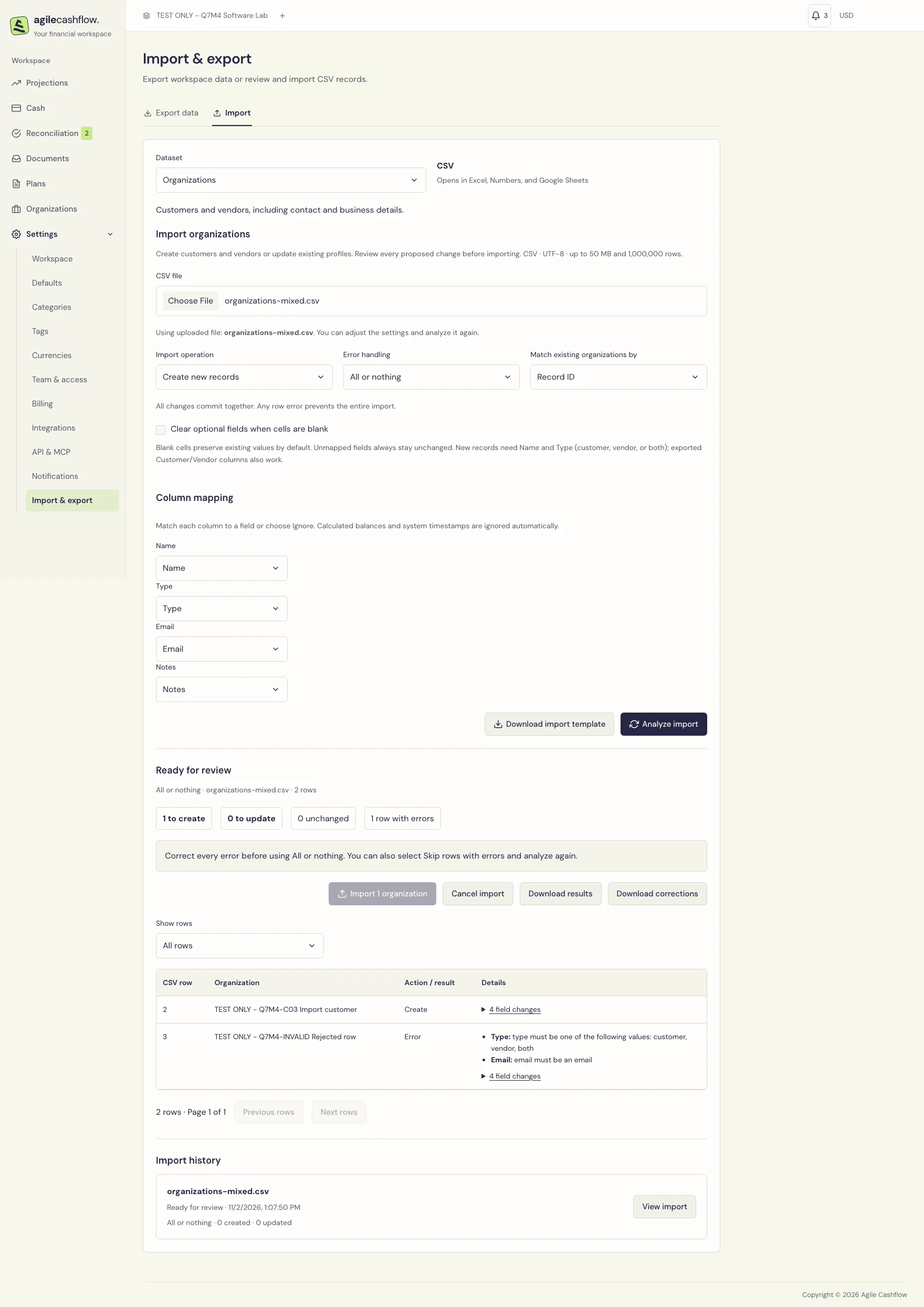
The review shows counts to create, to update, unchanged, and rows with errors. Inspect row details and before/after values, not just the counts. For financial imports, check reporting/original currencies, remaining capacities, matched references, and projected changes where provided.
Use Show rows to choose All rows, Creates, Updates, Unchanged, Rows with errors, Committed rows, or Uncommitted rows. Previous rows and Next rows page through 50 rows at a time. The uploaded source is reusable while its review is available; you can change options and analyze again without reselecting the file.
Choose an error policy and confirm
| Policy | Before confirmation | If application encounters an error or is canceled |
|---|---|---|
| All or nothing | Every row must be valid before confirmation is enabled | Changes commit together; a failed/canceled atomic application rolls back |
| Skip rows with errors | Valid rows can be confirmed while invalid rows are skipped | Valid rows commit in batches; already committed batches remain |
To apply the preview:
- Review every proposed change and error.
- Choose Import [count] [records] in the review section.
- Read the confirmation’s dataset, eligible count, error policy, and skipped count.
- Confirm the import. Wait for Import completed, Import completed with errors, Import rolled back, or another terminal result.
- Compare created, updated, unchanged, errors, and not-applied totals with the original row count.
- Open the relevant business screen and verify the resulting records. New imported documents still need confirmation in Documents.
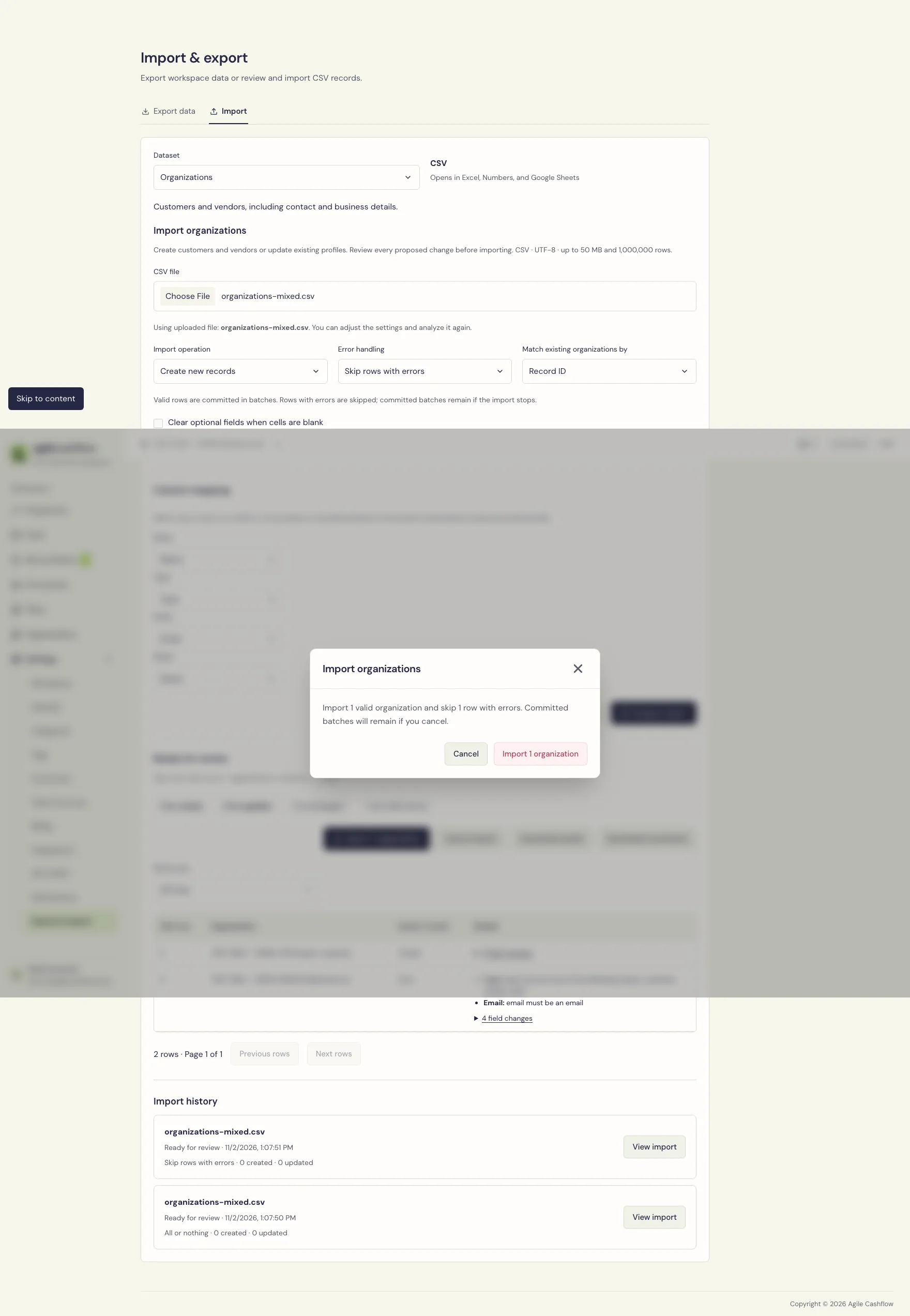
The illustrated sample file contains one valid TEST ONLY customer and one row with an invalid type/email. Use it once in a fresh demo, or inspect its existing import history before repeating it. All or nothing blocks it. After changing to Skip rows with errors and analyzing again, only the valid customer is created.
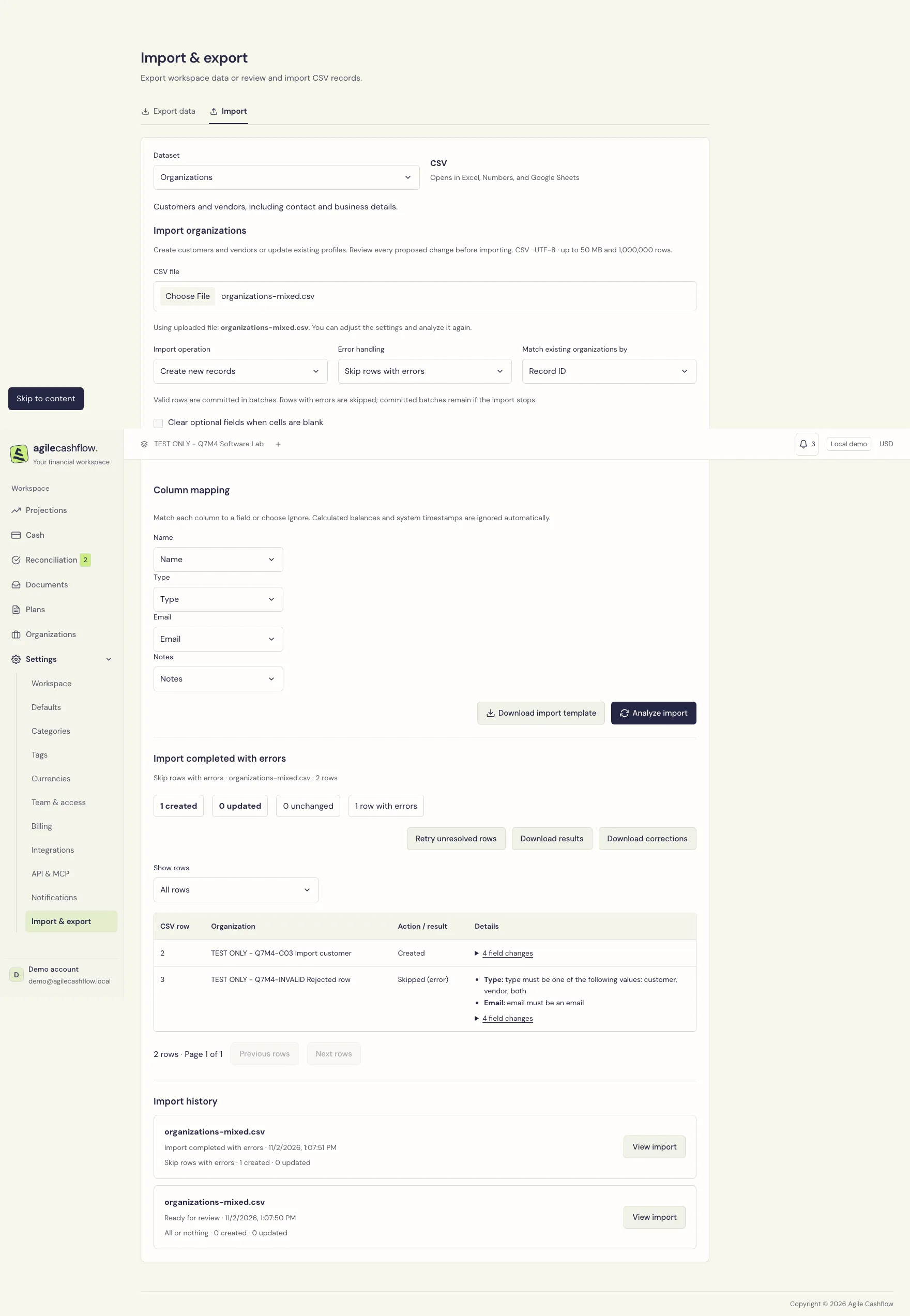
Cancel, correct, retry, and reopen history
- Cancel upload aborts an in-progress upload. Cancel import requests cancellation of analysis, review, or application. Wait for its terminal state; cancellation is not necessarily instantaneous.
- In skip mode, cancellation does not undo committed batches. Read the final counts before importing anything again.
- Download results includes row outcomes and created/matched record IDs. Download corrections contains rejected rows and their errors. Review it before retrying; extra report columns should be ignored as business data where appropriate.
- Retry unresolved rows creates a new analysis of rows that were not successfully committed. Review and confirm that new run. It does not blindly reapply every successful row.
- A stale preview is rejected when underlying data, capacities, or rates no longer match its review. Analyze again; do not keep confirming an outdated snapshot.
- A repeated file is flagged. Inspect its prior result first. Use Allow an intentional repeat of this file only when repetition is intended. Per-record duplicate protections still apply.
- Import history retains recent run summaries; select a run to reopen its available details. Preview/source/report details expire after their retention window, normally 24 hours. Re-upload/analyze if details have expired.
Dataset reference
The following reference covers every currently available business import and export. Download the dataset’s template for the full field list and accepted values. Prefer IDs when names/references are ambiguous, and use Record ID for renames.
1. Organizations
Import/export: customers and vendors, business/contact details, and exported reporting-currency financial overview. New records require Name and Type (customer, vendor, or both); exported Customer/Vendor flags also work. Optional fields include legal name, email, phone, website, tax ID, address parts, country, and notes. Updates match Record ID or exact organization name.
Name,Type,Email,Country
TEST ONLY - Q7M4-C03 Import customer,customer,accounts@q7m4-c03.invalid,Germany
Requires import permission plus Manage organizations. Name-based creation does not turn an unselected picker string into an organization elsewhere in the app.
2. Categories and tags
Import/export: classification definitions. Use Classification type Category for a category or Generic for a tag, plus Name. Match by Record ID or classification type + exact name. Create labels before plans that reference them. Rename by ID to preserve linked records.
Classification type,Name
Category,Training
Generic,Product squad
Requires import permission plus Manage workspace settings. CSV updates do not replace the UI’s merge action.
3. Currencies
Import/export: enabled currency configurations and rate sources. Use Currency code (uppercase ISO code), Enabled (true/false), and Rate source (manual/ecb). Match by Record ID or currency code. This creates configuration, not a dated quote.
Currency code,Enabled,Rate source
EUR,true,manual
Requires import permission plus Manage workspace settings. The reporting currency stays fixed; the default document currency cannot be disabled.
4. Workspace exchange rates
Import/export: dated quotes. New manual rates require Currency, Date, and Rate. Quote reporting-currency units per one source-currency unit. Match by Record ID or currency + date. Currency configuration must exist first.
Currency,Date,Rate
EUR,2026-10-01,1.10
Requires import permission plus Manage workspace settings. Automatic provider rates are read-only. Changes do not revalue booked documents, transactions, or schedules.
5. Cash accounts
Import/export: account names, currency, opening date/balance, and exported current/reporting balances. New accounts need Name, Currency, Opening date, and Opening balance. Match by Record ID or exact account name. Import rates before foreign opening balances.
Name,Currency,Opening date,Opening balance
Petty cash,USD,2026-10-01,250
Requires import permission plus Manage transactions and cash accounts. Currency stays fixed, opening values lock after transactions exist, and calculated current balances cannot be imported as replacements for history.
6. Cash transactions
Import/export: actual money, including linked transfer postings. New payments need an account, Date, signed Amount, and Description. Supply account ID/name per row or select a default account. The optional currency must agree with the account. Organization/category can be selected by ID or unambiguous name. Reference and notes are optional.
Date,Amount,Description,Reference,Organization,Category
2026-11-01,12000,C01 retainer part payment,Q7M4-RET-PAY,TEST ONLY - Q7M4-C01 Retainer customer,Development revenue
2026-11-01,-3000,Contractor first instalment,Q7M4-CON-PAY,TEST ONLY - Q7M4-V01 Contract engineering,Contractors
Choose the correct default USD account before analyzing this example. Positive receives money; negative pays money. The explicit Direction field accepts in, out, or transfer. For transfer creation, use Direction transfer, a source account, a destination account, and a positive amount. Both accounts must use the same currency. Review both linked sides; do not import two independent rows for the same transfer. For updates, target the outgoing transfer side; both postings update together.
Match existing payments by Record ID or exact reference + account. Exact account/reference and matching payment-detail duplicates are rejected. Allocated financial fields and historical records remain protected. Requires import permission plus Manage transactions and cash accounts. Use Payment allocations separately; importing a bank payment does not settle its invoice automatically.
7. Plans
Import/export: plan profiles and organization/classification links. New profiles need Name, Organization or Organization ID, Category or Category ID, Direction (COLLECT/PAY), and schedule rule where required by the template. Use MANUAL for manually maintained plans. Optional description and tags are supported. Tags must exist; use semicolon-separated names or a JSON array in a quoted CSV cell.
Name,Organization,Category,Direction,Rule,Tags
C01 portal milestones,TEST ONLY - Q7M4-C01 Retainer customer,Development revenue,COLLECT,MANUAL,C01 portal;Recurring
Match by Record ID or exact plan name. Terminated is protected rather than an editable lifecycle command. Requires import permission plus Manage plans. A rule/profile is not a list of cash dates: import Scheduled amounts separately.
8. Scheduled amounts
Import/export: schedules, original currencies, saved reporting values, and tags. Exports can include document obligations as well as plan schedules; only eligible plan schedules are editable through this importer. New rows require a Plan or Plan ID, today/future Date, and positive Amount. Currency defaults to the reporting currency. Use a unique Reference for repeatable matching. A selected Default plan applies only to rows without a plan.
Plan,Date,Amount,Currency,Reference,Tags
C02 support contract,2027-01-05,6000,EUR,Q7M4-C02-SUPPORT-2027-01,Recurring
Match by Record ID or reference + plan. Review the original amount, saved rate, and reporting forecast impact. Paid, reconciled, forwarded, and otherwise protected financial fields cannot be silently rewritten. Rates/dates are checked again when applying. Requires import permission plus Manage plans.
9. Documents
Import/export: invoice/bill metadata, original/reporting values, and calculated payment/match status. New records need Title, Document type (invoice/bill, also sales/purchase), Organization/ID, Document date, Due date, and positive Amount. Currency defaults to the document default. Reference and notes are optional.
Title,Document type,Organization,Reference,Document date,Due date,Amount,Currency
C01 delivery invoice,invoice,TEST ONLY - Q7M4-C01 Retainer customer,Q7M4-DEL-001,2026-10-30,2026-11-30,30000,USD
New imports are drafts, so they do not change forecasts until confirmed in Documents. Match existing records by Record ID or exact reference + organization + type. Paid/matched financial fields are protected. Requires import permission plus Manage documents.
Under Original files (optional), bulk-select PDF/PNG/JPEG files. Match by exact filename using the Original filename CSV field, or by reference using the filename without extension as the reference. Review attachment matches before applying. You can attach an original later from the document. Existing originals cannot be replaced through CSV.
Documents exports can optionally package original files; see Original-file ZIP exports.
10. Payment allocations
Import/export: links from existing payments to confirmed documents. Identify a payment by Payment ID or unambiguous Payment reference, narrowed by cash account where needed. Identify its document by Document ID or unambiguous Document reference, narrowed by organization. Enter a positive Amount in payment currency. A separate Amount in document currency is required for different currencies.
Payment reference,Cash account,Document reference,Organization,Amount in payment currency
Q7M4-RET-PAY,Operating bank,Q7M4-RET-001,TEST ONLY - Q7M4-C01 Retainer customer,12000
This example describes the already-recorded allocation; review matching/update mode before using it again. Match existing links by Allocation ID or the payment + document pair. Review remaining payment/document balances and saved conversions. Existing allocations omitted from CSV remain unchanged. Earlier valid rows consume available capacity; put reductions before increases when redistributing links. This import creates no new money. Requires import permission plus Manage transactions and cash accounts.
11. Document-to-plan matches
Import/export: reconciliation links, separate from payment allocations. Supply Planned amount ID, or an unambiguous scheduled reference with its plan, and Document ID or exact Document reference. Enter a positive Amount in reporting currency. The document must be confirmed, the plan active, and both sides must belong to the same organization and flow.
Document reference,Organization,Plan name,Scheduled amount reference,Amount in reporting currency,Reporting currency
Q7M4-DEL-001,TEST ONLY - Q7M4-C01 Retainer customer,C01 portal milestones,Q7M4-C01-PHASE2-2026-11,30000,USD
The referenced plan, schedule, and document must already exist. Match existing links by Record ID or the document + planned amount pair. Omitted matches are retained; CSV does not implicitly create schedules or delete links. Paid lower bounds, combined capacity, and carry-forward protections are checked at review and commit. Put reductions before increases. Requires import permission plus Reconcile documents.
12. Projections — export only
Exports one row per selected forecast period with opening cash, receipts, payments, planned collections/payments, balance adjustments, and closing cash in reporting currency. Choose Forecast start, Interval, and Periods (1–60). A projection is a computed snapshot; its totals cannot be imported as new financial records.
13–18. Currency review and exchange records — export only
| Dataset | What the CSV preserves | How to connect it to other exports |
|---|---|---|
| Forecast settlement instructions | Original amount/currency, expected settlement amount/currency, reporting quote, optional account, version and disabled state | Scope type + scope ID identify a document, planned amount, or match. Check current applicability in Projections. |
| Forecast review history | Actor, action, linked record and exact snapshot | Follow Linked record ID; Snapshot is a structured JSON value inside its CSV cell. |
| Recorded currency conversions | Exchange identity, dates, sell/buy currencies and accounts, reference, source and void state | Join Record ID to Conversion Group Id in Cash transactions to obtain the actual principal and fee postings. |
| Planned currency conversions | Remaining sell/buy amounts, saved reporting amounts and quotes, accounts and status | Join Record ID to Plan Id in planned fees and execution links. Remaining amounts change after execution. |
| Planned conversion fees | Each remaining fee, its currency/account, reporting value and quote | Plan Id groups fees; zero remaining rows can retain history. |
| Conversion execution links | Recorded exchange, planned exchange, exact consumed portions and disabled state | Plan Id and Conversion Group Id connect the plan and actual exchange; Consumed contains structured native/reporting portions. |
These datasets cannot be imported. Use currency review screens to change their financial relationships. A Cash transactions CSV includes exchange legs and fees, but does not by itself recreate a conversion group or execution history. A Projections CSV is a reporting-currency snapshot; export these supporting datasets and the original records to explain how it was calculated.
Import dependency order
For a new workspace: categories/tags → currencies → rates → organizations → cash accounts → plan profiles → scheduled amounts → documents → confirm documents → cash transactions → payment allocations → document-to-plan matches. Some independent setup steps can be done in another order, but every linked record must exist before its dependent row is applied.
For updates, export current IDs, change only the intended columns, analyze, and compare before/after values. An export contains read-only data as well as editable fields; it is not an unrestricted database restore file.
Export records
- Open Export data and select Dataset.
- Choose the available format (currently CSV; Documents can become a ZIP when originals are included).
- Apply Search, From date, To date, and Include archived or voided records where offered. These are export filters, independent of another page’s visible filters. Document date ranges use the document date; cash ranges use booking date; schedule ranges use schedule date.
- For Projections, choose Forecast start, Interval, and Periods.
- Choose Create export and wait for Completed.
- Choose Download CSV or Download ZIP in the selected transfer. Exports include every matching record across pages.
- Use transfer history to reopen a recent job or download again while it is available. Cancel a pending job using its cancellation control and inspect its resulting state.
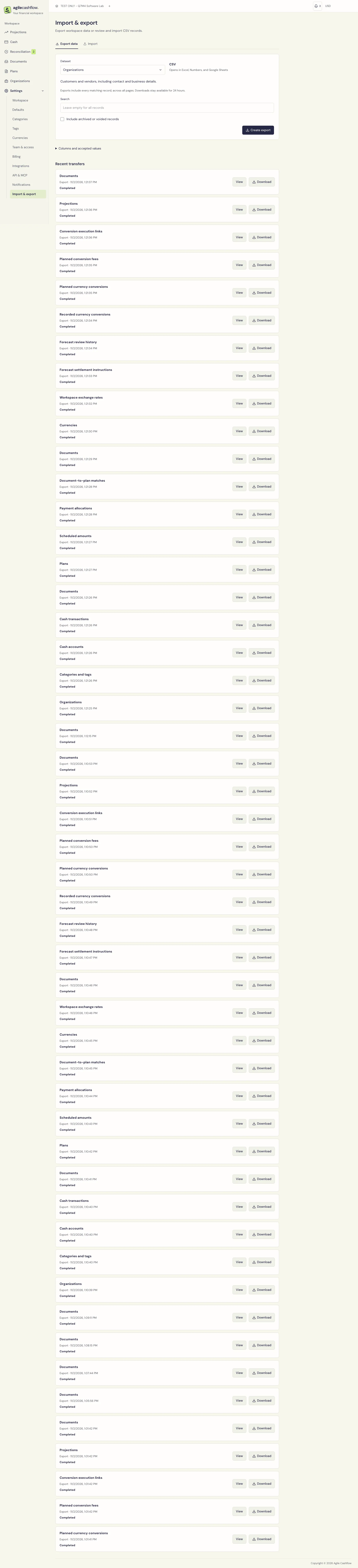
Completed export downloads remain available for 24 hours. If the job expires, create a new export. For a failed job, read its message and correct permissions, filters, or source files as appropriate. Exports respect dataset permissions; giving someone export access alone does not grant access to every dataset.
Original-file ZIP exports
- Choose Documents on Export data.
- Set the document filters, then check Include original files (ZIP with document metadata and a file manifest).
- Create the export and wait for Completed.
- Download ZIP. It contains
documents.csv,manifest.csv, andoriginals/<document ID>/.... - Use the manifest to map originals to document IDs and check sizes/SHA-256 values. Documents without originals are identified explicitly.
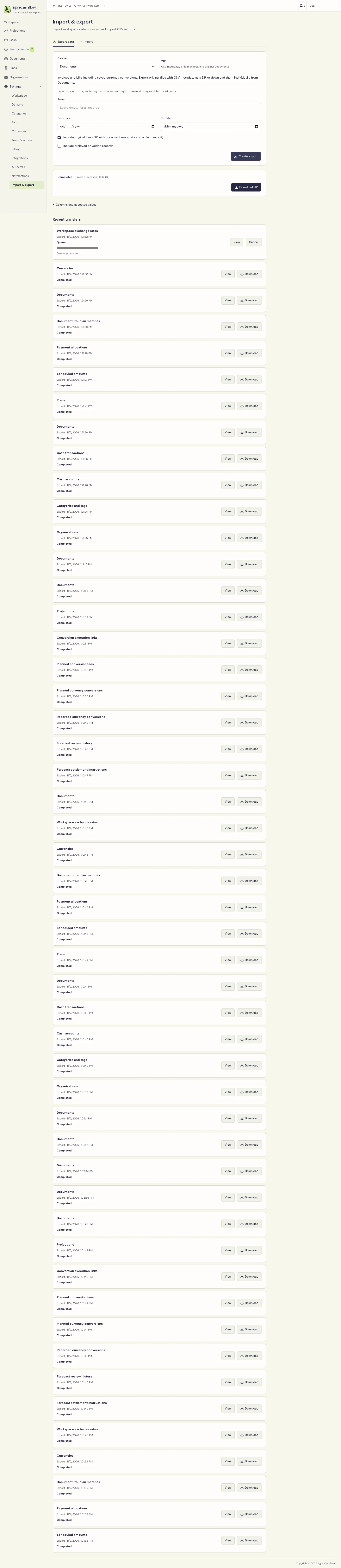
The package supports at most 10,000 documents/originals and 1 GiB. A missing/corrupt original fails the package rather than silently producing an incomplete archive. Narrow the filters for a larger set. File-inventory rows or CSV metadata alone are not substitutes for original files.