
Plans and scheduled amounts
Forecast work, repeat expenses, reschedule amounts, and manage a plan's lifecycle.
A plan groups expected receipts or payments for one organization, direction, and category. Its scheduled amounts, called Obligations on the detail page, supply the dates and amounts in the forecast. Plans can exist before invoices or bills arrive.
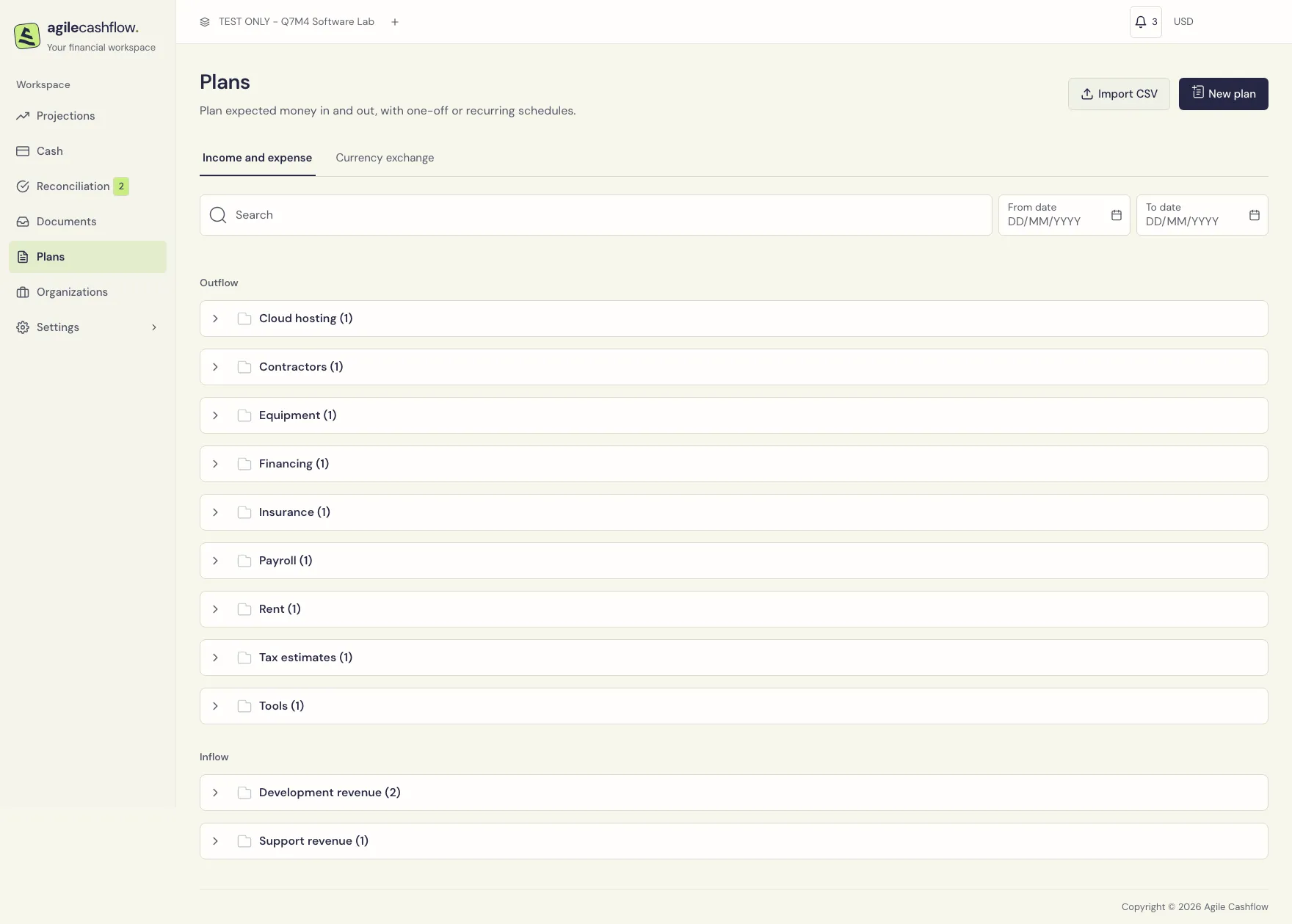
Browse and find a plan
Open Plans. Plans are grouped under inflow/outflow categories. Expand a category to see its plans; use the available expand/collapse controls to change how much is shown. Open a plan name for its details. The list also offers More actions for editing and lifecycle actions.
Use Search, From date, and To date to narrow the list. The date filters select plans with scheduled amounts in the date range. They do not mean the plan’s creation date. Choose Reset All to clear search/filter criteria.
Create a plan
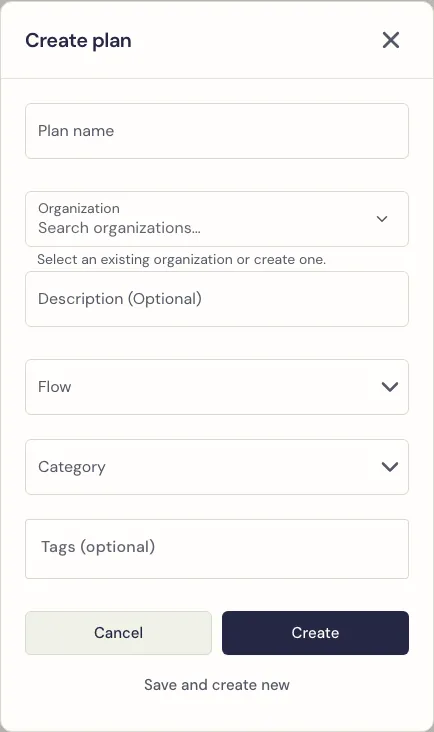
- Choose New plan.
- Enter a unique Plan name, such as
C01 portal milestones. - Select the Organization from the suggestions. Use New organization if needed.
- Add an optional description explaining the cash assumption.
- Choose Flow: Inflow for collections or Outflow for payments.
- Select a Category. Add optional Tags for projects, departments, or scenarios.
- Choose Create, or Save and create new to create it and continue entering another plan. The latter clears the name, organization, description, and tags while retaining the flow/category as starting values.
- Open the plan and add scheduled amounts. Creating its profile does not create a financial amount.
Add and edit a scheduled amount
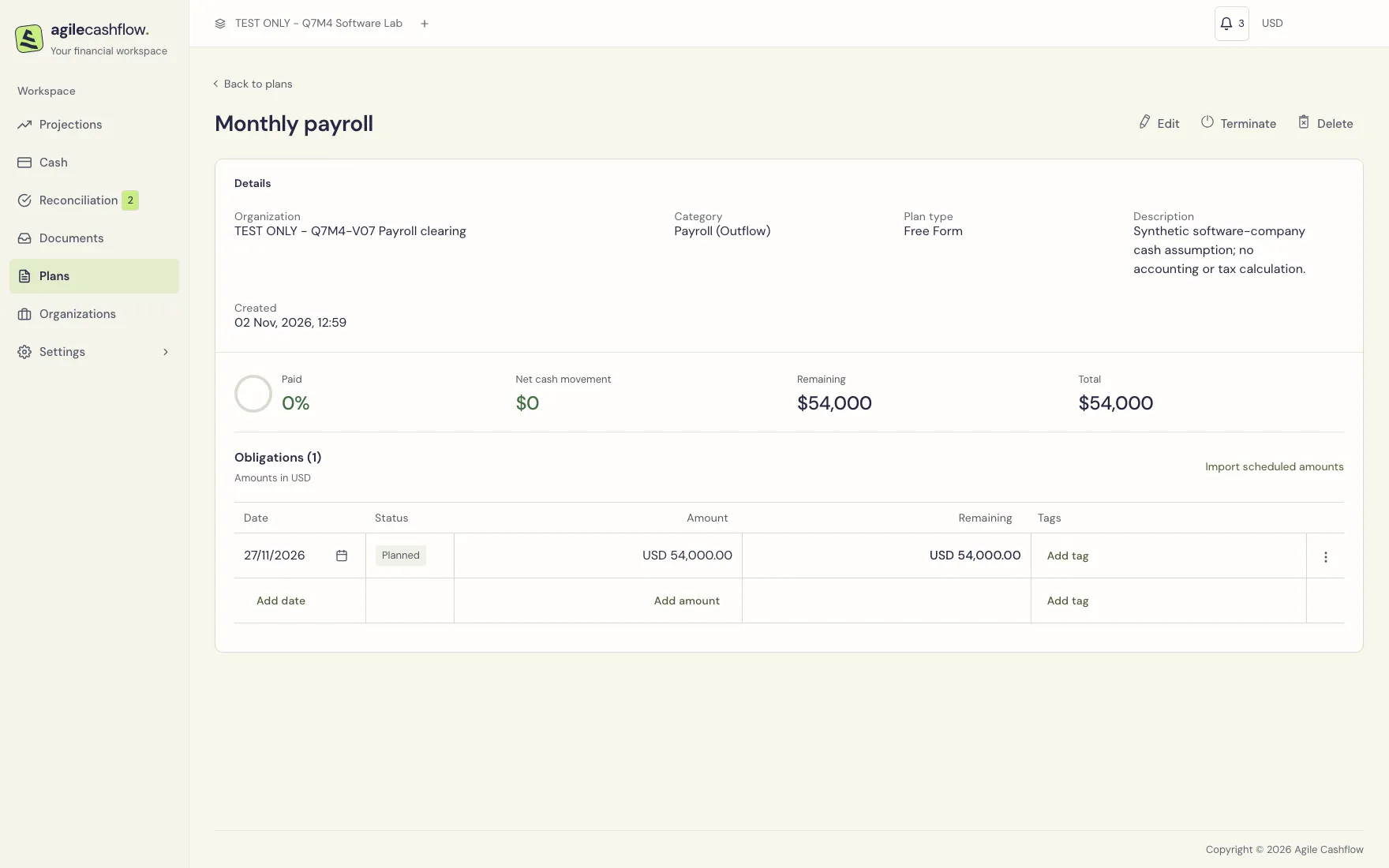
- Open the plan. Find the empty row below Obligations.
- Choose Enter Date and enter today or a future date in DD/MM/YYYY, or select it from the calendar.
- Choose Enter Amount and enter a positive amount. The plan’s flow determines whether it is money in or money out.
- Optionally choose Add Tag. A new row inherits the plan’s tags when no row tags are supplied.
- Click outside the row to finish editing. Check that the obligation count increases and the row persists after reloading.
- To correct an editable row, change its date, reporting total, or tags and leave the row again. Review the resulting Remaining and Total figures.
The inline table creates reporting-currency amounts. It displays Reporting total, Currency, Original amount, Remaining, and reconciliation links. For foreign-currency schedules, use Import scheduled amounts to review the original currency and saved conversion. Their financial fields are read-only in the inline table.
| Summary | How to read it |
|---|---|
| Paid | Paid cash represented by the plan’s schedules as a percentage of their total |
| Net cash movement | The magnitude of cash associated with those scheduled amounts |
| Remaining | Scheduled total still unpaid |
| Total | Total amount of the schedules currently represented by the plan |
These figures are not a project profit report. A profile may show Free Form for the manually maintained schedule type. They do not promise future monthly renewal; review the actual dated rows.
Duplicate and repeat
Open the row’s More actions menu at the right edge of the schedule table.
Duplicate creates another scheduled amount with the same amount and tags on the next inferred interval. The interval is based on the existing dates; a single or irregular schedule falls back to a monthly interval. Inspect the new date immediately rather than assuming it matches a billing contract.
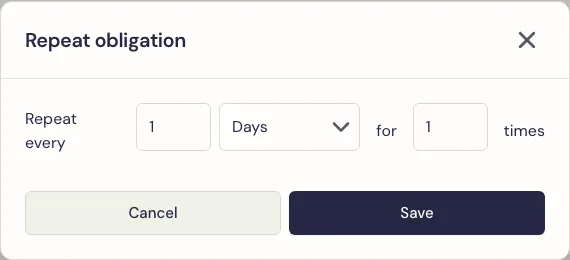
Repeat opens Repeat obligation:
- Set Repeat every, a unit (days, weeks, or months), and the number of additional occurrences.
- Choose Save.
- Review the generated dates, especially month-end dates. The original row remains; the repeat count adds future rows.
For payroll, a monthly repeat provides a starting schedule. Edit dates for actual payday and holiday arrangements. The action generates rows; it is not an unlimited background subscription.
Reschedule all or part of an amount
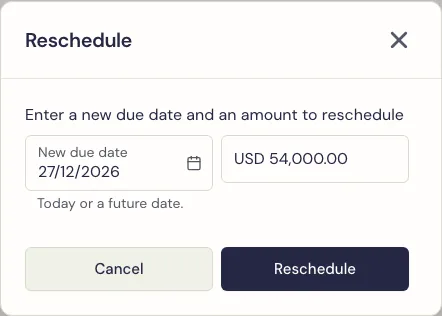
- Open More actions → Reschedule on an unpaid scheduled amount. You can also reach Reschedule from a plan amount’s projection detail.
- Enter New due date, today or a future date.
- Enter the amount to move, which must be positive and no greater than the remaining amount.
- Choose Reschedule and inspect the original and resulting schedules, then the forecast.
Example: move $2,000 of an $8,000 contractor payment to a later agreed date. The paid part is not moved. Rescheduling changes the cash expectation; it does not edit an uploaded supplier invoice’s legal due date.
Automatically carried overdue amounts are marked in the UI. The workspace default controls automatic plan carry-forward. Confirmed document due dates are retained. Paid amounts and some linked or forwarded financial fields are protected; review their links instead of repeatedly trying to overwrite a locked cell.
Match links, deletion, and lifecycle
- Reconciled With shows documents linked to a schedule. Use the link’s Unreconcile [document name] control to remove a match on an active plan. This restores the separate expectations; review the forecast afterward.
- Delete in a row’s More actions removes an eligible, unmatched schedule. This action can be immediate, so check the row first. Matched rows have restrictions. Deleting a schedule does not void a document or reverse recorded money.
- Edit at the top of a plan changes its profile. Save the form and check the new details.
- Terminate ends the plan. Read the dialog: unmatched obligations are removed; obligations reconciled with invoices/bills remain represented. Confirm only after checking the affected schedules.
- Activate reopens a terminated plan. It does not recreate the unmatched obligations removed during termination. Add any needed future schedules again.
- Delete for the entire plan requires confirmation and is offered for eligible plans without reconciliations. Use termination when you need to preserve linked financial history.
For importable plan profiles, schedule references, foreign currencies, tags, and bulk updates, see Import and export. A plan profile and its scheduled amounts are separate datasets.